Beas Manufacturing › Master Data › Resources
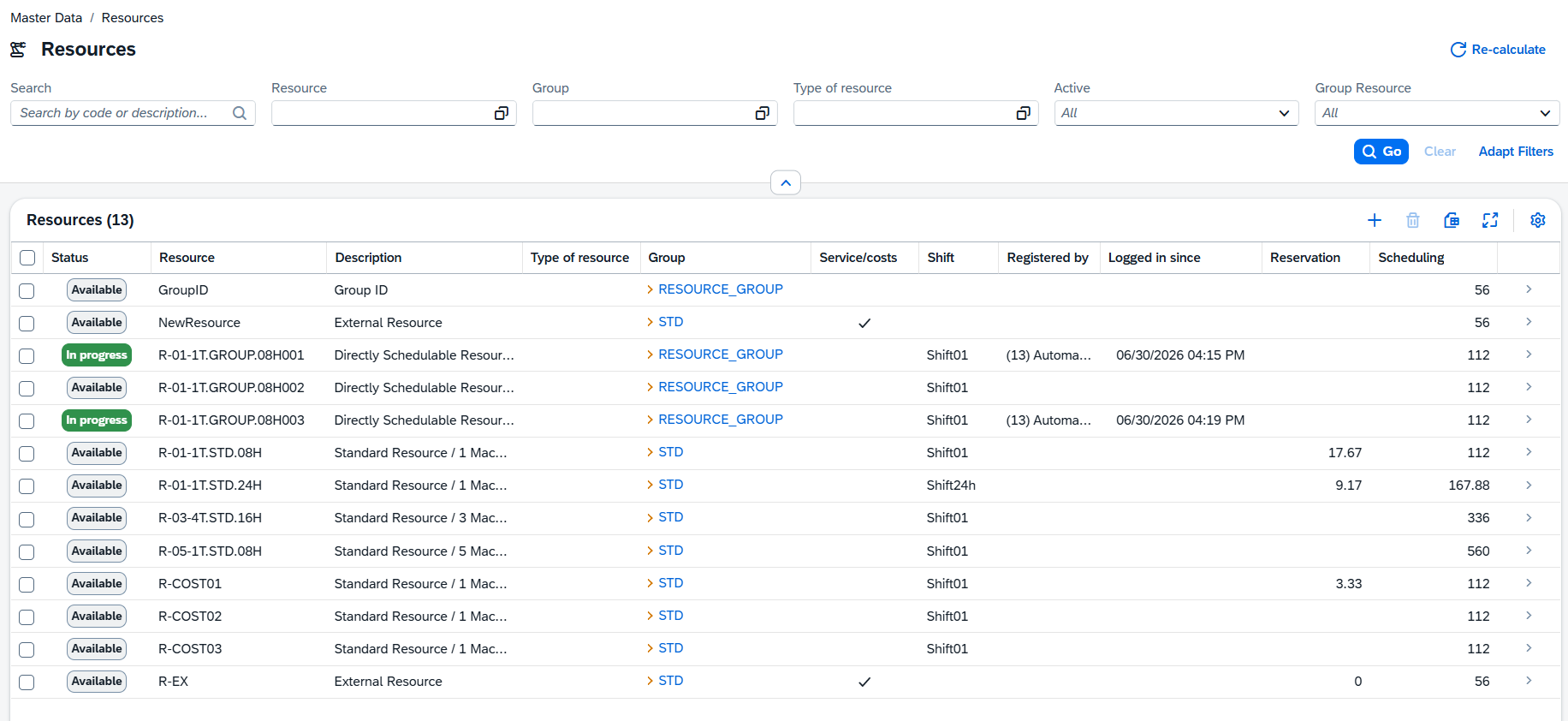
Resources is the master-data list of every work center — the machines, work places and outsourcing points where production operations are carried out. Each row is one resource; from here you search the catalog, narrow it with column filters, and open any resource to view or edit its full detail. The list also surfaces a few operational columns (who is clocked on, since when, current reservation) so planners get a live shop-floor picture without leaving the list.
Accessing the view
1.Open the SAP Web Client launchpad.
2.Click the Resources tile.
3.Direct URL: /views/resources
The list loads with the filter bar expanded. Press the "+" icon to add a new resource, or open an existing one to edit it.
Re-calculate: Button to recalculate planned capacity of the resources. Select one or more resources and click it to rebuild their planned-capacity calendars — with no rows selected it recalculates all resources. Run it after changing shift schedules or planned capacity so the planning data stays in sync.
Search and filtering
Type in the Search box to narrow the list by code or description. Every column also carries its own column filter — open a column's filter to restrict by resource type, group, branch and so on. Filters are reflected in the page URL, so a filtered list can be shared as a link.
Status badge
The Status column shows a badge with the resource's current shop-floor state. Hover it to see the details behind the state:
Indicator |
State |
On hover |
|---|---|---|
In Progress |
An operation is currently running on the resource. |
Employee, start date, work order operation and item. |
Interrupted |
Work on the resource is interrupted. |
Employee, start date and the interruption (ID and reason). |
Available |
Nothing is running on the resource. |
The next scheduled operation and item, when there is one. |
The resource's own color and icon are used throughout the list so each work center is easy to recognize.
Columns
These columns are shown by default:
Column |
Description |
|---|---|
Status |
Live shop-floor status badge for the resource. |
Resource |
The resource code. |
Description |
Description of the resource. |
Type of resource |
The type the resource belongs to. Links through to the Type of Resource record. |
Group |
The resource group the resource belongs to. Links through to the Resource Group record. |
Service/costs |
Marked when the resource represents an outsourced (external) work center. |
Shift |
The shift / layer plan assigned to the resource. |
Registered by |
Operational — the person currently clocked on to the resource. Computed live; empty when nobody is clocked on. |
Logged in since |
Operational — since when the current person has been clocked on. |
Reservation |
Operational — the load currently reserved on the resource. |
Scheduling |
Operational — the resource's planned-capacity hours. |
Note: The operational columns (Registered by, Logged in since, Reservation, Scheduling) are calculated live from the shop floor rather than stored, so they cannot be sorted or filtered and stay empty when there is no clocked production.
Additional columns
The following columns are hidden by default. Open the column settings to switch on the ones you need.
Column |
Description |
|---|---|
Image |
A small picture or icon for the resource, tinted with its color. |
Branch |
Business place / branch the resource belongs to. |
Active |
Whether the resource is active. |
Marginal Costs |
Marginal (overhead) processing cost rate. |
Full Costs |
Full processing cost rate. |
Planned Capacity in hrs. / day |
Daily capacity in hours. |
No. of machines/persons |
Number of machines or people the resource represents. |
Employee planner |
Employee planner responsible for the resource. |
Consider resource limits |
Whether the resource is subject to a capacity check limit. |
Cost Center |
Cost center the resource is booked to. |
Personal allowance % |
Processing-time percentage (personal allowance). |
Recovery time % |
Setup-time percentage (recovery time). |
Setting up Full Costs / Setting up Marginal Costs |
Full and marginal setup cost rates. |
Efficiency Rate |
Efficiency factor applied to the resource's times. |
Location |
Physical location of the resource. |
Transit time |
Transition time applied after the operation. |
Pool limit |
Pool limit for pool resources. |
Lot Size Minimum / Maximum |
Minimum and maximum lot size. |
Labor costs |
Whether labor costs are valued separately. |
Cost elements |
Number of cost-element levels expanded for the resource. |
Work order grouping |
Whether the resource can process several orders at once. |
View in APS / Capacity planning / Resource optimization |
Advanced planning & scheduling flags. |
Overloaded |
Operational — whether the resource is currently overloaded. |
Tip: Any user-defined fields (UDF) configured for resources also appear here and can be switched on from the same column settings.
Opening a resource
Click a row (or its navigation arrow) to open the resource's detail page, where all of its settings are grouped into sections — general data, scheduling, cost, documents, consumables and more. See Resource — Detail.