Beas Manufacturing › Master Data › Resource Groups › (open or create a group)
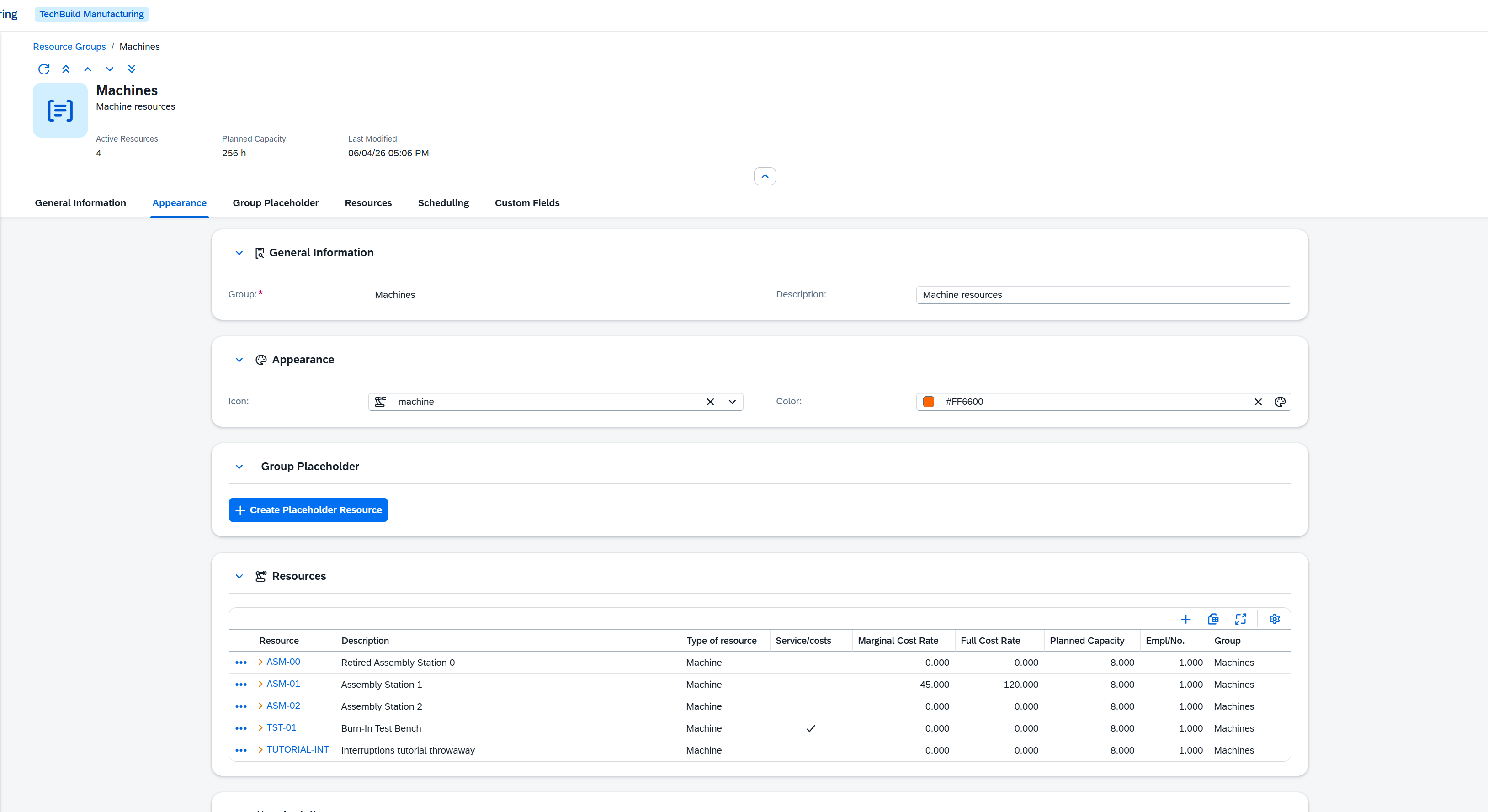
The Resource Group detail page is where you can access information of a group and the resources it bundles together. Here you can get an overview on various pieces of information: general, appearance, and resource related data, as well as scheduling information and custom fields.
Note: This view is read-only.
On this page
1.Open the Resource Groups list (it has no launchpad tile — reach it from the Group column of the Resources list
2.Direct URL: /views/resource-groups/{ID}
3.Click an existing group to open.
From the toolbar you can also Duplicate the group or jump to View All Resources of the group in the Resources list.
The header shows the group's code and description, plus a set of capacity facets:
Facet |
Description |
|---|---|
Active Resources |
Number of resources currently in the group. |
Planned Capacity |
Total planned capacity of the group, in hours. |
Placeholder Resource |
The group's placeholder resource code. Shown only when a placeholder is set. |
Last Modified |
Date and time the group was last changed. |
Field |
Description |
|---|---|
Group |
Required. The group's unique code. Set on creation, not changed afterwards. |
Description |
Description of the group. |
Controls how the group is shown throughout the application.
Field |
Description |
|---|---|
Icon |
An icon for the group, chosen from the icon picker. |
Color |
A color for the group, chosen from the color picker. |
A group can have a placeholder resource — a stand-in that operations are planned against when any resource in the group may do the work, letting the scheduler pick the actual machine later. This section lets you assign the placeholder and, when none exists yet, create one for the group. It is shown once the group has a code.
Lists the resources that belong to the group. Use New Resource to add a resource to the group; each row can be edited or removed from its row actions. The grid also shows key cost and capacity figures per resource:
Column |
Description |
|---|---|
Resource |
Resource code. Links through to the resource's own detail page. |
Description |
Description of the resource. |
Service/costs |
Marked when the resource is an outsourced (external) work center. |
Marginal Cost Rate |
Marginal (overhead) processing cost rate of the resource. |
Full Cost Rate |
Full processing cost rate of the resource. |
Planned Capacity |
Daily capacity of the resource, in hours. |
Empl/No. |
Number of machines or people the resource represents. |
Group |
The group the resource belongs to. |
The group's planning calendar. It is shown once the group has a code and lets you review the group's capacity over time. Individual capacity is maintained on each member resource.
If your company has defined extra user fields for resource groups, they appear in a Custom Fields section. This section is shown only when such fields exist.
Tip: The order groups appear in can be set from the Resource Groups list with Reorder Groups, and the way a group's member resources are sequenced for automatic optimization is maintained with the Optimization Sequence action.