Beas Manufacturing › Master Data › Resources › (open or create a resource)
The Resource detail page is where you view, create and edit a single work center. A resource carries a lot of data, so the page is split into sections — general settings, scheduling and capacity, cost, attachments, consumables, downtime, maintenance and more. Some sections appear only when they apply to the resource (for example a placeholder resource hides the sections that describe a physical machine).
On this page
•Cost
1.Open the Resources list (from its launchpad tile).
2.Click an existing resource to open it, or use Create to add a new one.
3.Direct URL: /views/resources/{ID}
The header shows the resource's code and description, along with facets for its type, group, location and last-modified date. From the toolbar you can:
•Edit — modify an existing resource; new resources open ready to fill in.
•Duplicate — create a new resource pre-filled from the current one.
•Dispatches — open the list of operations currently dispatched (reserved) on the resource.
•Cross Reference — open a where-used list showing where the resource is referenced.
Placeholder resources: when the resource is a group placeholder (created from a resource group's Create Placeholder Resource action), the parts that only make sense for a physical machine are hidden: the Outsourcing and Pool Limit fields, the Min / Max Lot Size fields, and the Cost Details, Attachments, Documents, Consumables, Downtime and Transit Times sections. The General, Scheduling, Cost, Extended, Maintenance and Custom Fields sections stay available so the placeholder can still be planned against the group.
The main section, laid out in two columns.
Field |
Description |
|---|---|
Code |
Required. The resource's unique code. Set on creation, not changed afterwards. |
Description |
Required. Description of the resource. |
Group |
The resource group this resource belongs to. Pick it from the lookup. |
Type of resource |
The type that classifies the resource. Pick it from the lookup. |
Location |
Physical location of the resource. Pick it from the lookup. |
Branch |
Business place / branch the resource belongs to. Pick it from the lookup. |
Service/costs |
Marks the resource as an outsourced (external) work center. Hidden for placeholders. |
Employee planner |
The employee planner responsible for the resource. Pick it from the lookup. |
Capacity planning |
When on, the resource is capacity-planned and the Scheduling section becomes available. |
Pool limit (hrs) |
Pool limit for pool resources. Hidden for placeholders. |
Transit time in days |
Transition time applied after the operation. |
Efficiency Rate % |
Efficiency factor applied to the resource's times. |
Single operator per operation sequence |
When on, only one operator may work on the resource per operation sequence. |
Work order grouping |
When on, the resource can process several orders at once. |
Set Same Start and Finish Date |
Forces the grouped orders to share start and finish dates. Shown only when Work order grouping is on. |
Active |
Switches the resource on or off. |
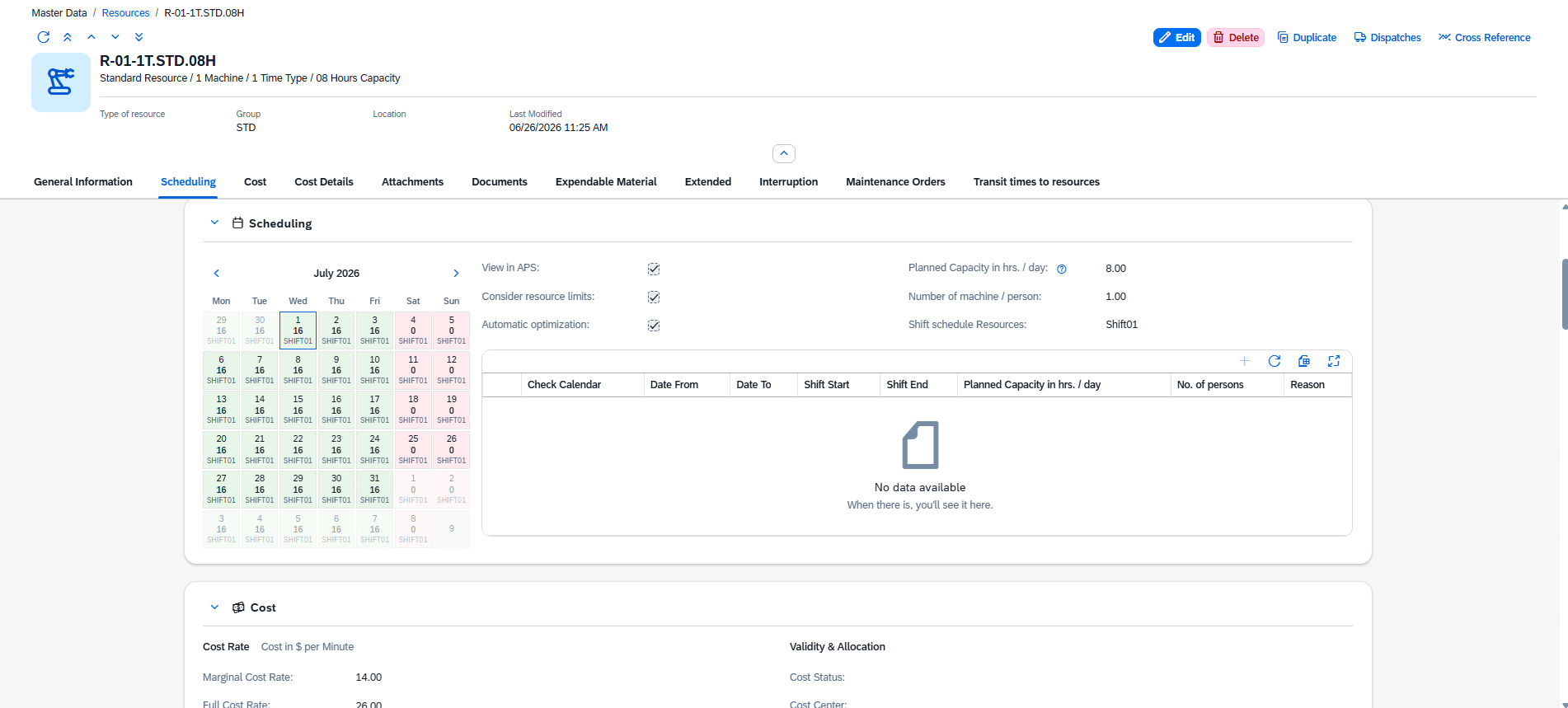
Shown only when Capacity Planning is on. It combines the capacity settings, a planning calendar and a table of day-planning overrides.
Capacity fields
Field |
Description |
|---|---|
View in APS |
Include the resource in the advanced planning & scheduling view. Shown with the APS licence. |
Planned Capacity in hrs. / day |
Daily capacity in hours. Disabled when a shift schedule drives the capacity. |
Consider resource limits |
Apply a capacity check limit to the resource. Shown with the APS licence. |
Number of machine / person |
Number of machines or people the resource represents. |
Automatic optimization |
Include the resource in automatic optimization. Shown with the APS licence. |
Shift schedule Resources |
The shift schedule that drives the resource's capacity. Pick it from the lookup. |
Day-planning overrides
A grid of date-bound exceptions to the standard capacity. Rows can be created, edited, deleted and recalculated. Each row records:
Column |
Description |
|---|---|
Check Calendar |
Whether the calendar is checked for this entry. |
Date From / Date To |
The period the override applies to. |
Shift Start / Shift End |
Start and end of the working window. |
Planned Capacity in hrs. / day |
Capacity in hours for the period. |
No. of persons |
Number of persons for the period. |
Reason |
Free-text reason for the override. |
The cost section is a matrix of cost rates. Each row holds a marginal cost rate, a full cost rate and a cost element. Which rows are shown depends on the Expand to cost elements setting (see the footer below):
Cost row |
When shown |
|---|---|
Cost Rate |
Always. The base processing cost rate. |
Setup Cost Rate |
When expanded to 2 or more cost levels. |
Post-Processing Cost Rate |
When expanded to 3 or more cost levels. |
Auxiliary Cost Rate |
When expanded to 4 cost levels. |
Personal Cost Rate |
When Value labor costs separately is on. |
Each row has three cells:
Cell |
Description |
|---|---|
Marginal Cost Rate |
The row's marginal (overhead) cost rate. |
Full Cost Rate |
The row's full cost rate. |
Cost Element |
The cost element (time type) the rate is booked to. Pick it from the lookup. |
Validity & Allocation
Field |
Description |
|---|---|
Cost Status |
The date from which the cost rates take effect. |
Cost Center |
The cost center the resource is booked to. Pick it from the lookup. |
Cost Structure
Field |
Description |
|---|---|
Expand to cost elements |
How many cost levels to expand (1–4). Higher values reveal the additional cost-rate rows above. |
Value labor costs separately |
When on, labor costs are valued separately and the Personal Cost Rate row and Cost Details section appear. |
Shown when the resource is not expanded to extra cost elements. It breaks the processing cost down into labour components across two blocks — Direct Cost (marginal) and Fix Cost (fixed). Each block has the same five components: Direct labor cost, Indirect Labor Cost, Rem. Overhead Cost, Amortization and Assessments. A summary row shows the marginal, fixed and full totals and compares them with the stored cost rates.
Up to three pictures for the resource. Hidden for placeholders.
Field |
Description |
|---|---|
Image 1 / Image 2 / Image 3 |
Pictures uploaded for the resource. |
A grid of documents linked to the resource. Rows can be created, edited and deleted. Each row records:
Column |
Description |
|---|---|
Info |
Short description of the document. |
Version |
Document version. |
Cross Reference |
Link / reference to the document. |
Available |
Whether the document is available. |
Entry By |
User who added the entry. |
Entry On |
Date the entry was added. |
A grid of expendable/consumable items associated with the resource. Rows can be created, edited and deleted.
Column |
Description |
|---|---|
Item |
Consumable item code. |
Description |
Description of the item. |
Info |
Free-text note. |
Additional settings, laid out in two columns.
Field |
Description |
|---|---|
Lot Size Minimum / Lot Size Maximum |
Minimum and maximum lot size for the resource. Hidden for placeholders. |
Personal allowance % |
Processing-time percentage (personal allowance). |
Recovery time % |
Setup-time percentage (recovery time). |
Image |
An icon for the resource, chosen from the icon picker. |
Color |
A colour for the resource, chosen from the colour picker. |
A grid of interruptions recorded against the resource. Rows can be created, edited and deleted. Key columns:
Column |
Description |
|---|---|
Interruption Reason ID |
The reason for the interruption. |
Information |
Free-text detail. |
Type |
Type of the interruption (e.g. Resource or Tool). |
Personnel ID |
Person linked to the interruption. |
Logged out From |
Where the person was logged out from. |
Date From / Date To |
Start and end of the interruption. |
Status |
Active, Planned or Completed. |
Registered by |
Person who registered the interruption. |
Origin / Origin Document / Origin Line / Origin Line 2 |
Where the interruption originated, when it comes from another document. |
Time continues |
When on, the time counter is not stopped by the interruption. |
Titled Maintenance Orders in the app. A read-only grid of maintenance orders for the resource.
Column |
Description |
|---|---|
Document |
Maintenance document number. |
Date |
Date of the maintenance order. |
Plan |
The maintenance plan it belongs to. |
Remarks |
Free-text remarks. |
Status |
Planned, In Progress or Completed. |
Work Order |
The linked work order, if any. |
A grid of transit times from this resource to other resources. Rows can be created, edited and deleted. Hidden for placeholders.
Column |
Description |
|---|---|
Destination Resource |
The destination resource. |
Transit time (days) |
Time, in days, to move from this resource to the destination. |
Last Modified / Modified By |
When and by whom the entry was last changed. |
If your company has defined extra user fields for resources, they appear in a Custom Fields section (up to 15 fields).
Tip: Many sections and fields appear only when they are relevant — the Scheduling section needs Capacity Planning on, the Personal Cost Rate row needs Value labor costs separately, and placeholder resources hide the machine-only sections. If a section is missing, it simply doesn't apply to the current resource.