You can add, modify, duplicate and delete Quality Control Blockage Reasons.
Opening the view
1. Open a Blockage Reason detail view from the QC Blockage Reasons - List
2. Type the direct URL: /views/qc-blockage-reasons/{ID}
3. Add a new Blockage Reason by pressing "+" (Create) in the tool bar of QC Blockage Reasons - List
Creating a reason
When adding a new Blockage Reason, the "Create New" dialog opens:
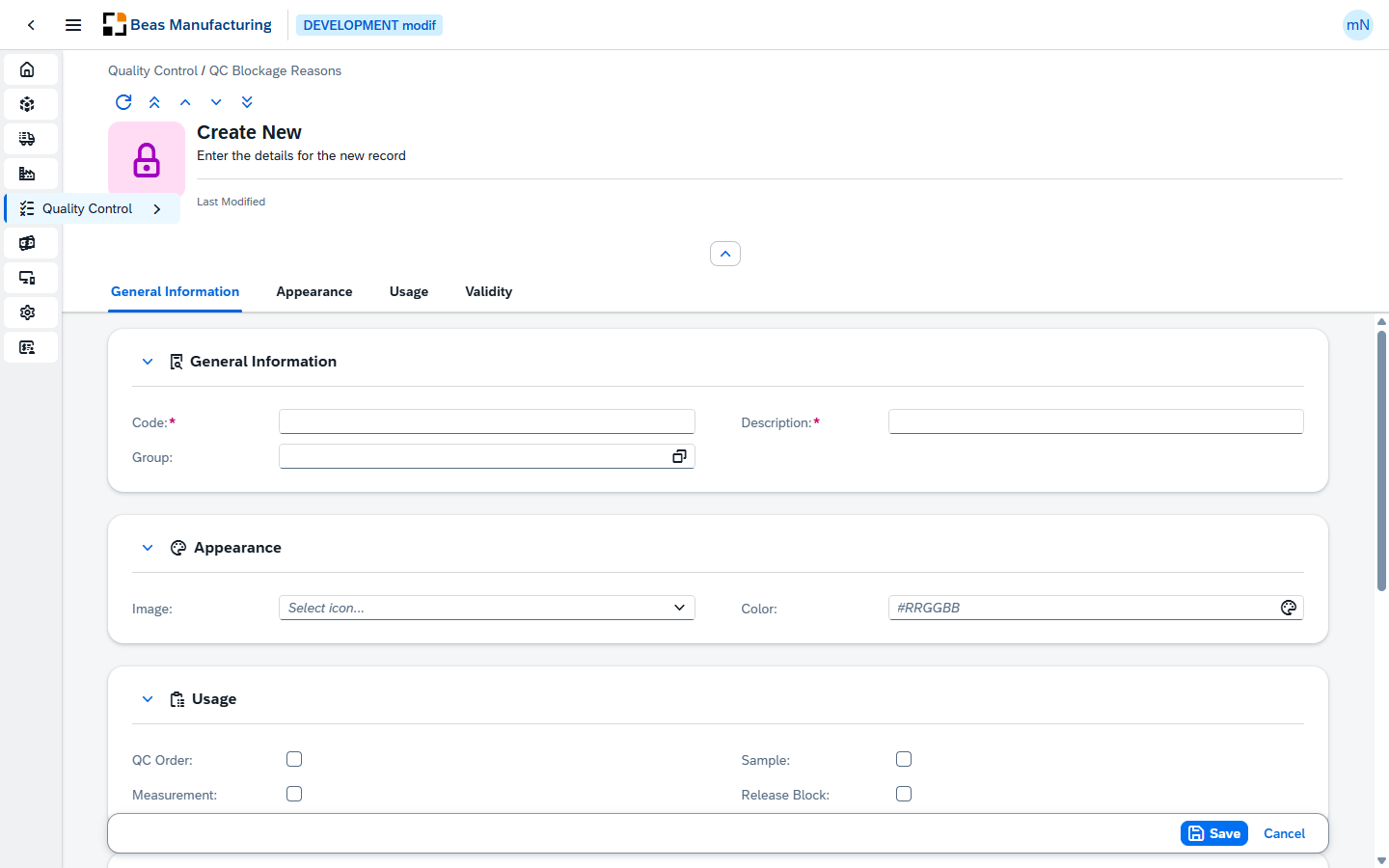
General Information
Field |
Description |
|---|---|
Code |
Required. The unique identifier of the reason (up to 20 characters). It is set when the record is created and cannot be changed later. |
Description |
Required. The text of the reason (up to 200 characters). |
Group |
Optional. Links the reason to a group (up to 20 characters); use the selection list to pick an existing group. Within a QC inspection plan, only reasons from the same group can be selected together. |
Appearance
Field |
Description |
|---|---|
Image |
An icon shown for the reason in lists. Choose one with the icon picker. |
Color |
A color shown for the reason in lists. Choose one with the color picker. |
Usage
The Usage check boxes control where the reason can be selected, and whether it blocks release.
Field |
Description |
|---|---|
QC Order |
When selected, the reason can be chosen on a QC order. |
Sample |
When selected, the reason can be chosen on a sample. |
Measurement |
When selected, the reason can be chosen on a measurement position. |
Release Block |
When selected, applying the reason blocks the release of the affected QC order, sample or measurement until it is resolved. |
Validity
Field |
Description |
|---|---|
Valid From |
Optional. The date from which the reason is active. |
Valid To |
Optional. The date until which the reason is active. Use the validity dates to phase a reason in or out without deleting it. |
Duplicating a reason
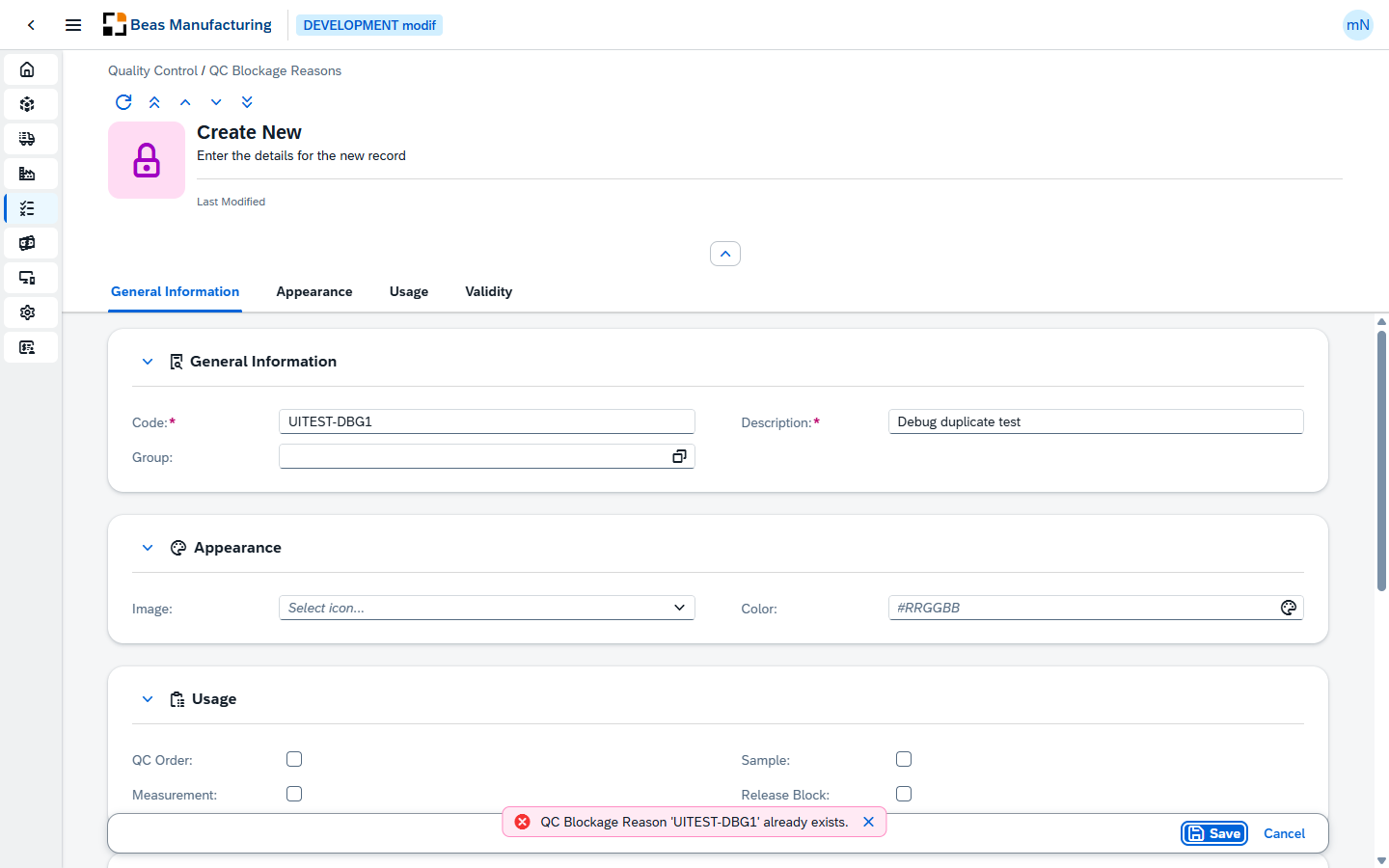
To create a new reason based on an existing one, use the Duplicate row action. A copy of the selected reason opens in the form. Give the copy a new, unique Code before saving — if the code is already in use, the save is rejected and an error is shown.
Deleting a reason
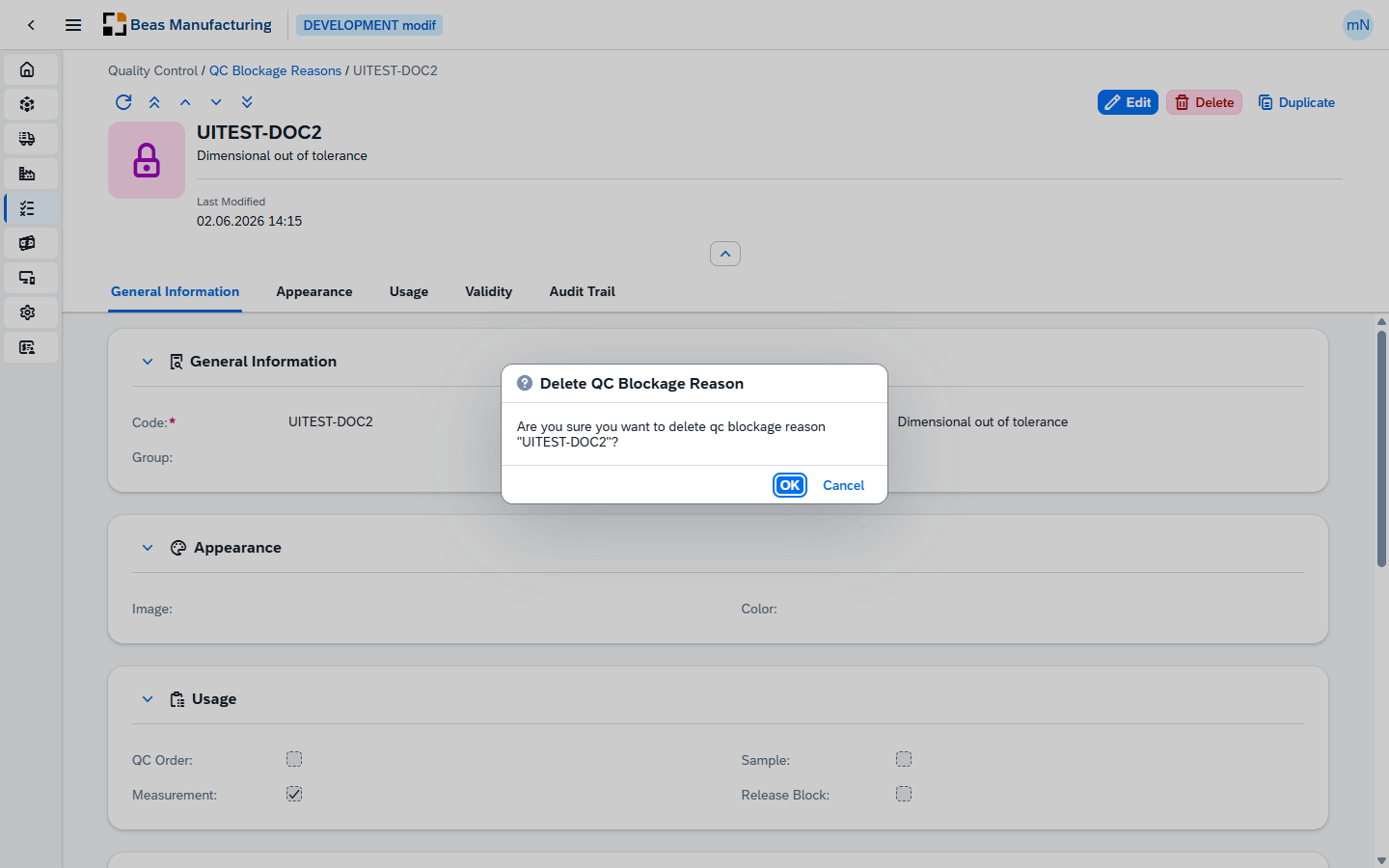
Select one or more reasons and choose Delete in the toolbar, then confirm. A reason that is still in use cannot be deleted. A reason that is referenced by a QC order, a sample or a measurement cannot be deleted — the Web Client shows a message such as "This QC Blockage Reason is referenced by a QC Order and cannot be deleted." Remove the reference first, or set a Valid To date to retire the reason instead.
Tips Quick search: Type any part of a code or description in the search box to filter the list instantly. Make reasons easy to spot: Assign an Image and Color so each reason is recognizable at a glance in QC lists. Control where a reason appears: Use the Usage check boxes to expose a reason only where it makes sense — on QC orders, samples, measurements, or any combination. Retire instead of delete: Set a Valid To date to phase out a reason that is already referenced, rather than trying to delete it.