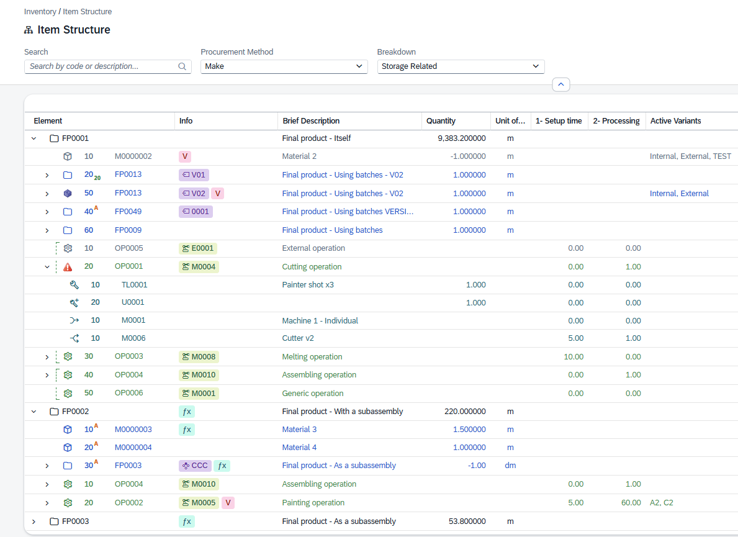
Item Structure lets you explore how a manufactured item is built up — its Bill of materials (the materials it consumes) and its routing (the operations needed to make it) — as a single expandable tree. Expand any item to drill down level by level into its sub-assemblies, their materials and operations.
Opening the view
1.Open the SAP Web Client launchpad.
2.Click the Item Structure tile (Inventory area).
3.The view opens empty. Type an item code or name in the search box and press Search to load its structure.
Direct link: views/item-structure
Search and filters
Set what you want to see and press Search.
Field |
Description |
|---|---|
Search |
Free text. Matches both the item code and the item name, so you can look up an item either way. This is the only field that loads results — the filters below just narrow what is loaded. |
Procurement Method |
Limit the top-level items to a sourcing type: All (default), Make (produced in-house) or Buy (purchased). |
Breakdown |
Further narrows by the item's disposition. The available choices depend on the Procurement Method: •Make — Storage Related, Order Related, Phantom Assembly Group, Set Item, Template. •Buy — Non-Breakdown, Provision Parts. Changing the Procurement Method resets this list to the matching options. |
The structure tree
Results are shown as an expandable tree. Click the arrow on a row to load and reveal its children; children are fetched only when you expand a row, so even large structures open quickly. Each level of the tree is one of these:
Level |
Description |
|---|---|
Item |
The top-level master item you searched for. |
Material |
A material consumed by the item or version. A made material can be expanded further into its own materials and operations. |
Operation |
A routing step needed to produce the item. Expand it to see the resources it uses: •Tool •Utility •Parallel operation •Alternative |
Version |
A Bill-of-materials / routing version of the item, when the item is version-controlled. Each version holds its own materials and operations. |
Columns
All columns are visible by default. There are no hidden columns in this view.
Column |
Description |
|---|---|
Element |
The tree column. Next to the indentation and the expand/collapse arrow it shows: •a type icon (item / material / operation / tool, utility…) — hover it to see what the row is; •a small disposition badge over the icon, shown on Make items (produced in-house) with a special disposition: “S” order-related and “P” phantom (hover to see the full disposition); •the position within its parent, with a superscript (breakdown disposition — how the material is issued) and, for a material, a subscript (the linked operation that consumes it); •the code of the element. Overlapping operations are marked with a green dashed bracket down the left edge. |
Info |
Status badges that summarize the row. Depending on the type you may see: •Version — on an item or material row: which bill-of-materials / routing version it comes from; •Status — on a version row: that version's status; •Resource — on an operation row: the resource assigned to it; •Variant — on a material row: the variant it applies to; •Alternative materials — shown when the material has alternatives defined; •“V” — shown when the row has variant-specific entries; •“ƒx” — shown when the row uses a formula or script. |
Brief Description |
Description of the item, material or operation. |
Quantity |
Material quantity used. Decimals follow the material's unit of measure. |
Unit |
Unit of measure of the material. |
Setup Time |
Setup duration of an operation. |
Process Time |
Processing duration of an operation. |
Active Variants |
The variants for which the row applies, when the item is variant-driven. |
Drawing Number |
Engineering drawing reference of the item, if any. |
Match Code |
Match / cross-reference code of the item. |
DIN |
DIN / standard reference of the item, if any. |
Material Group |
Material group the item belongs to. |
Raw Material |
Raw material reference linked to the item, if any. |
Row colors
The text of each row is tinted by its type so the tree is easy to scan (items and versions keep the default colour):
Indicator |
Description |
|---|---|
Blue |
Material. |
Green |
Operation (routing step). |
Teal |
Tools, utilities and the like used by an operation. |
Gray |
Row outside its validity dates — currently inactive. |
Open detail
Double-click a row to jump to its master record: a material opens the item's Bill of Materials position, an operation opens the Routing position.