Beas Manufacturing › Production › Active Work Order Times
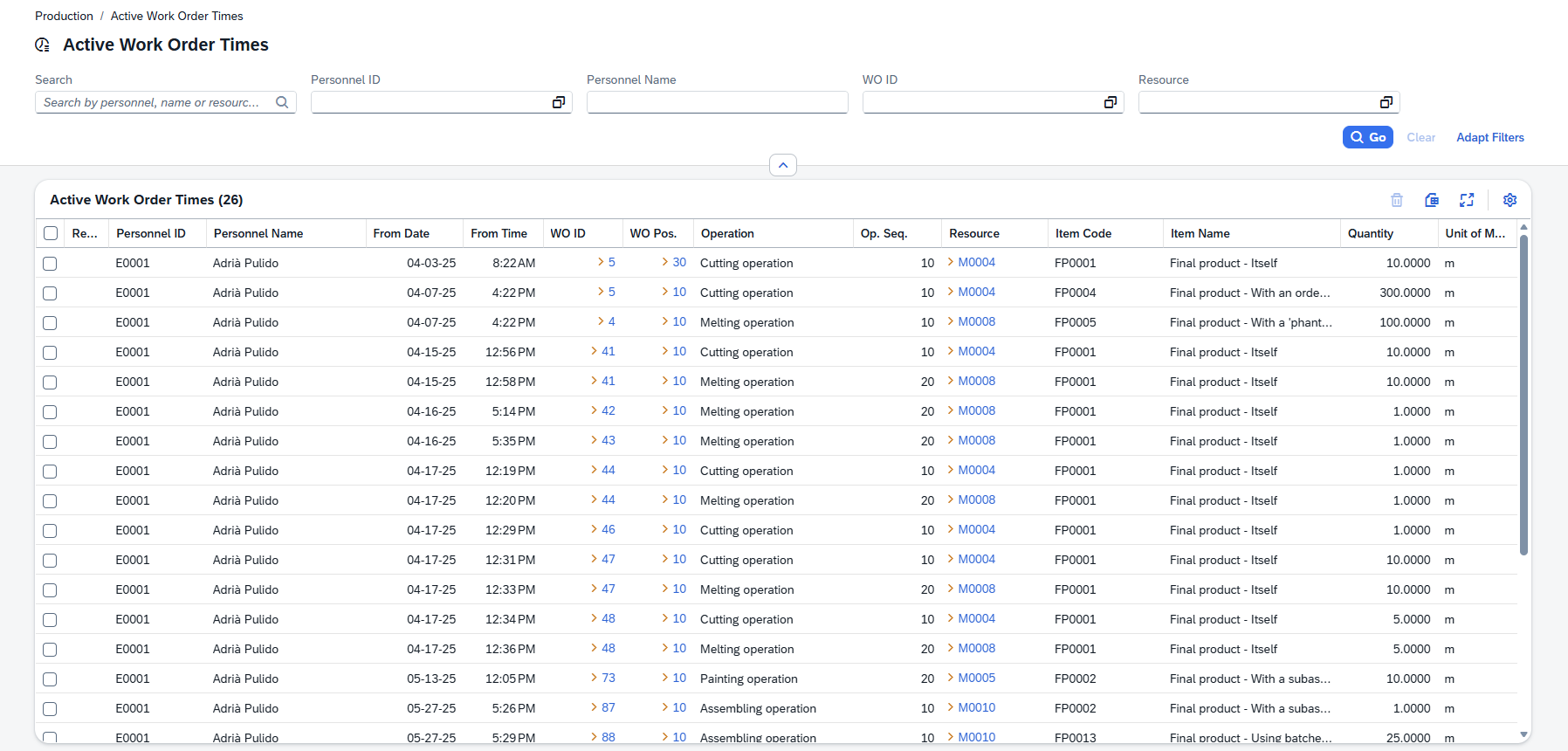
The Active Work Order Times page shows all operators currently clocked in to a work order position — the open time stamps that have not yet been closed by a clock-out. It gives supervisors and production managers a real-time snapshot of who is working on what, on which resource, and since when. The total count of active operators is also shown on the home page dashboard tile.
Opening the view
1.In the main navigation, go to Production › Active Work Order Times.
2.Direct URL: /views/active-work-order-times
3.The list shows all currently open (not yet clocked-out) time stamps across all operators and work orders.
4.There is no detail page — information is available directly in the list row and through the linked work order and resource pages.
Tip: The home page dashboard shows an Active Operators tile with the count of distinct personnel currently clocked in. Click it to jump straight to this list.
Filters and search
Type in the search box to search across Personnel ID, Personnel Name and Resource ID at once. Use the individual filter fields for more targeted results.
Filter |
Description |
|---|---|
Personnel ID |
Filter by one or more personnel IDs. Use the lookup to select from the personnel list. |
Personnel Name |
Filter by personnel display name (free text). |
WO ID |
Filter by one or more work order IDs. Use the lookup to select from the work orders list. |
Resource |
Filter by one or more resource IDs. Use the lookup to select from the resources list. |
Press Go to run the search with the current filter values. Press Clear to reset all filters .
Press Adapt filters to select any value(s) based on the columns in the list below.
List columns
The grid shows the core fields by default. Use the column settings button to show or hide additional columns.
Column |
Description |
|---|---|
Icon |
A visual icon for the operation type associated with this time stamp. |
Personnel ID |
The personnel ID of the operator who clocked in. |
Personnel Name |
The display name of the operator. |
From Date |
The calendar date when the operator clocked in (date portion of the clock-in time stamp). |
From Time |
The time of day when the operator clocked in (time portion of the clock-in time stamp). |
WO ID |
The work order ID. Clicking the link navigates to the parent work order. |
WO Position |
The position line number within the work order. Clicking the link navigates to the position detail page. |
Operation |
The description of the operation being performed. |
Op Sequence |
The internal sequence number of the operation. |
Resource |
The resource (machine or workplace) being used. Clicking the link navigates to the resource detail page. |
Item Code |
The item code of the work order position. |
Item Name |
The item description. |
Qty Consumption |
The quantity recorded as consumed on this time stamp, if any. |
Unit of Measure |
The unit of measure for the consumption quantity. |
The following columns are available but hidden by default:
Column |
Description |
|---|---|
Op Sequence 2 |
A secondary operation sequence reference. |
Operation Text |
Additional text for the operation. |
Resource Description |
The full description of the resource. |
Booking Type |
The type of booking (e.g. regular, setup). |
Closed |
Whether the time stamp has been closed (clocked out). |
Remark |
Any remark recorded at clock-in. |
Batch Number |
The batch number recorded on the time stamp. |
Barcode |
The barcode scanned at clock-in. |
WO Type |
The production type of the parent work order. |
Reference |
The document reference linked to the parent work order. |
Customer |
The customer name from the parent work order. |
Order Date |
The order date of the parent work order. |
Delivery Date |
The delivery date of the parent work order. |
Time Type |
The cost element |
Project |
The project code. |
Branch |
The business place name. |
Takeover |
Whether this is a takeover booking from another operator. |
DIN |
DIN reference for the item. |
Raw Material |
The raw material ID. |
Match Code |
Match code for the time stamp. |
Created |
The exact date and time the time stamp was created (clock-in time stamp). |
Created By |
The user record that created the time stamp. |
Modified |
The date and time the record was last changed. |
Modified By |
The user who last changed the record. |
Closed At |
The date and time the time stamp was closed (clock-out). |
Removing a time stamp
In some cases a time stamp may need to be removed — for example if an operator forgot to clock out and the entry is now stale.
1.Select the row (or rows) you want to remove by clicking the selection chec kbox on the left of the row.
2.Click Delete in the toolbar.
3.Confirm the deletion in the dialog that appears.
Note: Deleting a time stamp is permanent and cannot be undone. This action requires Full Control permission on the Active Work Order Times resource. Contact your system administrator if the Delete button is not visible.
Navigating to related records
Several columns in the grid are clickable links that take you directly to the related record:
•WO ID → opens the parent work order detail page.
•WO Position → opens the work order position detail page for this line.
•Resource → opens the resource detail page.
Use the Work Orders and Resources buttons in the page toolbar to navigate to those list views directly.
Tips
- Group the list by Personnel or Resource to quickly see all active time stamps per operator or per machine in a collapsed view.
- The home page Active Operators tile refreshes automatically and shows the current count of distinct personnel clocked in. Use it as a quick health check before opening the full list.
Note: This list only shows open (not yet clocked-out) time stamps. To view completed time entries — including clock-out times, durations and costs — use the Production Times page instead.