Track the live production status of Work orders linked to a Sales order or customer.
The Work Order Status view shows the live production progress of the Work orders linked to a Sales order (or to a customer). From one page you can see which work orders are on track, which are falling behind, how far each has progressed, and the state of every operation inside each work order.
Accessing the View
The view is accessible from the SAP Web Client (Beas Manufacturing extension):
•Direct URL: /wo-status
•Deep link from other screens: Cockpit and other analytics views can link directly to Work Order Status for a specific sales order — in that case the filter is pre‑populated and the grid is loaded automatically.
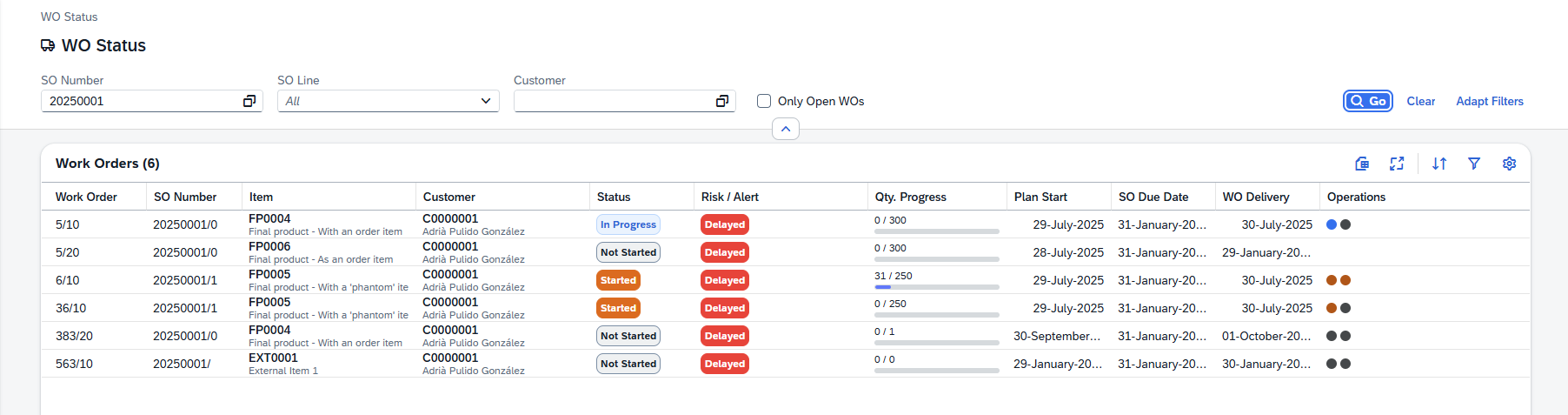

|
The following controls are available (where applicable) with the Beas Web Client.
Navigation bar When viewing a material or operation detail page, you can navigate between positions without returning to the list view. A navigation toolbar with four arrow buttons is available at the top of the page:
A Refresh The navigation order follows the position ordering from the list view (respecting any active sort). Navigating between positions updates the URL, breadcrumb, header, and all form sections in place. Navigation wraps around: pressing Next on the last position moves to the first, and vice versa. Quick Review Workflow: Use the navigation arrows to quickly review all materials or operations in sequence. This is particularly useful during BoM audits or routing reviews, where you need to inspect each position without repeatedly returning to the list.
Sorting, freezing usability
Filter window
Search field: Search by the indicated prompts or click the browse button
Grid Tool bar The grid toolbar above the results table provides several actions for working with the data:
You can also click any column header directly to sort by that column, or drag a column header to the grouping area to group by that column.
Action Buttons Action buttons appear only when applicable for a column. You can access them by clicking on the three dots left of the relevant field:
|


 button is also available to reload the current position's data from the server without navigating away.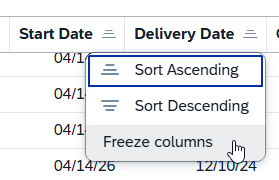

 where applicable for multiple selection.


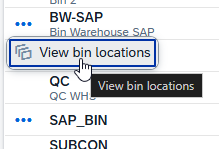
Using the Filter bar
The collapsible filter bar at the top of the view defines which work orders are loaded. At least one of SO Number or Customer Code must be provided before clicking Go.
Filter |
How to use |
Notes |
|---|---|---|
SO Number |
Click the browse button |
Single select. Populates the Sales Order Line drop-down below. |
Sales Order Line |
Optional. Once an SO is selected, this combo box is filled with the lines of that Sales order (shown as Line# — ItemCode ItemName). |
Leave empty to see all lines of the SO. Clears automatically when the SO Number is cleared. |
Customer Code |
Click the browse button |
Single select. Can be combined with SO Number or used on its own. |
Only Open WOs |
Check box. When ticked, closed work orders are hidden from the grid. |
Off by default — closed WOs are shown so you can verify quantity and completion after the fact. |
Click Go to load the grid. Click Clear to reset all filters and empty the grid. The active filter values are saved in the page URL, so bookmarking or sharing the URL brings back the same search.
Reading the Grid
The grid lists one row per Work order position (one planned item on the shop floor). The default columns are described below; additional columns can be enabled from the grid settings ( ) menu.
Default columns
Column |
Description |
|---|---|
Work Order |
WO number / position number (e.g. 4123 / 1). |
SO Number |
SO number / SO line (the Sales order line the WO is producing for). |
Item |
Item code and description on two lines (code in bold, description underneath). |
Customer |
Customer code and name on two lines. |
WO Status |
Color‑coded badge — Not Started, Started, In Progress, Completed, or Closed. See Status colors. |
Risk / Alert |
One or more tags flagging potential problems. See Risk tags. |
Qty. Progress |
Progress bar showing made / planned quantity with the UoM and a percentage. Green once ≥ 100 %, blue while in progress. |
Plan Start |
Planned start date of the WO position. |
SO Due Date |
The due date of the Sales order line. |
WO Delivery |
The delivery date set on the Work order position. |
Operations |
A row of colored dots — one per operation. Hover for an operation‑by‑operation tool tip. See Operation progress dots. |
Additional columns
Column |
Description |
|---|---|
Plan Qty |
Planned quantity |
Actual Qty |
Produced quantity |
Is Closed |
Check box indicating closed positions |
Status Colors
The WO Status badge combines the state of every operation in the work order into a single label:
Badge |
Description |
|---|---|
Closed |
The work order position has been closed in the ERP. |
Completed |
All operations of this WO are completed. |
In Progress |
At least one operation has been started or completed. |
Started |
Production has begun but no operation is fully underway yet. |
Not Started |
No operation has been touched yet. |
Risk Tags
Risk tags highlight Work orders that deserve attention. Zero, one, or several tags can appear on the same row.
Tag |
When it appears |
Why it matters |
|---|---|---|
Delayed |
The WO is still open and its delivery date is today or in the past. |
The promised date cannot be kept without action. |
Delay Alert |
The WO has not started yet and its planned start date is already in the past, or the plan shows it starting in the future but production has not begun. |
Indicates the plan will slip unless work is kicked off soon. |
Qty Risk |
The WO is closed but the produced quantity is below the planned quantity. |
Closed short — investigate scrap, consumption, or re‑posting needs. |
Blocked |
The WO header is locked in the ERP. |
The work order cannot be reported against until it is unlocked. |
Operation Progress Dots
Each row shows a small sequence of dots, one per operation in the work order's routing:
Dot |
Operation state |
|---|---|
Grey |
Not Started |
Orange |
Started |
Blue |
In Progress |
Green |
Completed |
Hover any dot row to open a tool tip listing each operation with its current status. This gives you a fast visual scan of where a work order is on the shop floor without opening it.
Up to the first 10 operations are rendered; the tool tip header still shows the full operation count.
Empty States and Messages
•"Search Work Order Status" — shown before you click Go. Enter a Sales Order or Customer and search.
•"No work orders found" — the filters returned no rows. Try broadening the filter (e.g., untick "Only Open WOs").
•Red message strip — a backend error occurred; the message can be dismissed and the search retried.
Tips
•If your Sales order has many lines, filter by Sales Order Line first to focus on a specific item — this significantly shortens the grid.
•Turn on Plan Qty and Actual Qty columns when investigating Qty Risk — they expose the raw numbers behind the progress bar.
•Leaving Only Open WOs off is the fastest way to audit closed short work orders (Qty Risk tag).
•Use the column filters (e.g. WO Delivery before today) to build a "work orders overdue" worklist without changing the filter bar.