Categorize and classify materials and items across the Beas Manufacturing system. Material Groups let you organize by type, apply shared cost surcharges, assign accounting information, and track which items belong to each group.
Overview
Material Groups are a core element of the Beas Manufacturing master data. They allow you to group items and raw materials into logical categories — for example by material type (metals, plastics, electronics) or by purpose (packaging, semi-finished goods, finished products).
Each material group can carry its own cost surcharge percentages (for full-cost and marginal-cost calculations), G/L account assignments (full costs, marginal costs, and fixed costs), and optional visual identifiers such as icons and colors.
Material groups are referenced throughout the system by Items and Raw Materials. When you assign a material group to an item, you establish a relationship that can be inspected from either side: from the item's detail view (where the Material Group field is displayed), and from the material group's detail view (via the Cross Reference function, which shows all items linked to that group).
Accessing Material Groups
From the main application, open the side navigation menu and navigate to:
PATH: Master Data › Material Groups
This opens the List Report view, which displays all material groups in a searchable, sortable, and filterable table.
Direct link: views/material-groups
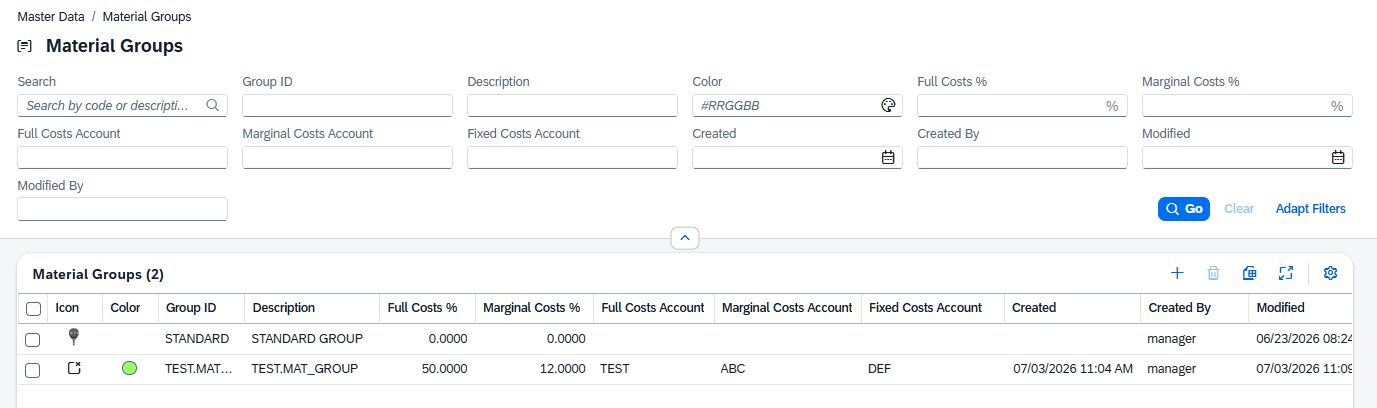
The list view follows the SAP Fiori List Report pattern. It is the central place to browse, search, filter, and manage your material groups. From here you can also create new groups and delete existing ones.
Default Columns
The following columns are visible by default when you first open the list:
Column |
Description |
|---|---|
Icon |
Displays the assigned icon or image for the group (SAP icon, Beas icon, or custom image). Shown as a small graphic in the row. |
Group ID |
The unique identifier code for the material group. Clicking this value opens the detail view for that group. |
Description |
A free-text description providing more detail about the group's purpose or contents. |
Full Costs % |
The surcharge percentage applied to full-cost calculations for items in this group. |
Marginal Costs % |
The surcharge percentage applied to marginal-cost calculations for items in this group. |
Additional Columns
The following columns are available but hidden by default. You can enable them using the grid settings (gear icon) in the table toolbar:
Column |
Description |
|---|---|
Color ID |
The actual color rendered to the group with a numeric color identifier used for visual distinction in lists and charts. |
Full Costs Account |
The G/L account number used when posting full cost entries for items in this group. |
Marginal Costs Account |
The G/L account number used when posting marginal cost entries for items in this group. |
Fixed Costs Account |
The G/L account number used when posting fixed cost entries for items in this group. |
Created |
Date and time when the record was created. |
Created By |
User name of the person who created the record. |
Modified |
Date and time of the most recent modification. |
Modified By |
User name of the person who last modified the record. |
UDF 1 – UDF 4 |
User-Defined Fields, if configured in the UDF Configuration screen. |
Searching
The search bar at the top of the list allows you to perform a free-text search across the visible text columns. As you type, the table filters to show only rows where the Group code or Additional Info contains your search term. The search is case-insensitive and applies immediately.
Filtering
For more precise filtering, click the Adapt Filters button to expand the filter bar. You can add filter conditions for any column in the grid. Each filter field supports the appropriate input type for its data:
•Text fields (Group, Description, Accounts) — free-text search with contains matching.
•Numeric fields (surcharge percentages, Color ID) — exact value or range filtering.
•Date/time fields (Created, Modified) — date range filter with From and To pickers, useful for finding records created or changed within a specific time period.
Sorting and Grouping
Click any column header to sort the table by that column. Click again to reverse the sort order. Columns marked as group-able (Group, Description, Created, Modified) can also be used to group rows by dragging the column header into the group area, or by using the table settings dialog.
Toolbar Actions
Button |
Icon |
Description |
|---|---|---|
Create |
+ |
Opens a blank detail form where you can define a new material group. See Creating a Material Group. |
Delete |
|
Deletes the selected row(s). This button is disabled until you select at least one row using the check boxes. See Deleting a Material Group. |