|
The Operation Detail View shows all information about a single operation position in an item's routing. It is the most comprehensive detail view, with multiple sections and embedded sub-grids for tools, utilities, and resources.
Accessing the view
1.Open an Operation entry from SAP Web Client > Advanced Production > Routing.
2.Select an Operation in the list.
3.Alternatively navigate to: /items/{code}/operations/{positionID}
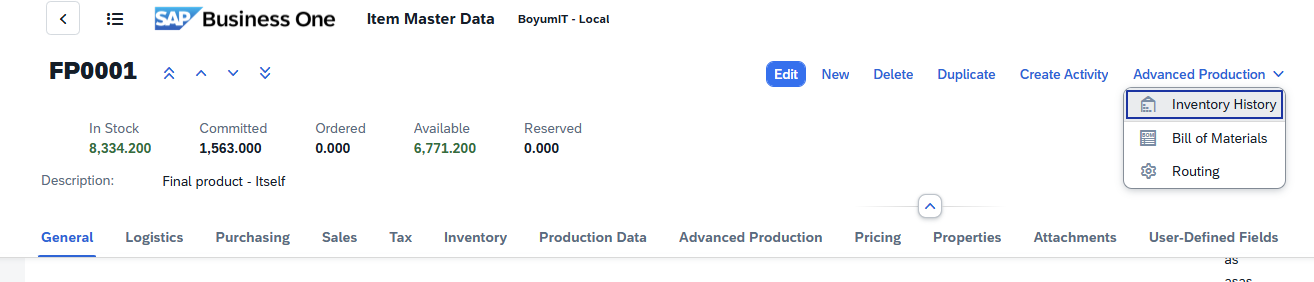
You can access this view by clicking on an operation in the Operations list.
Direct URL: /views/items/[code]/routing/[routing number]
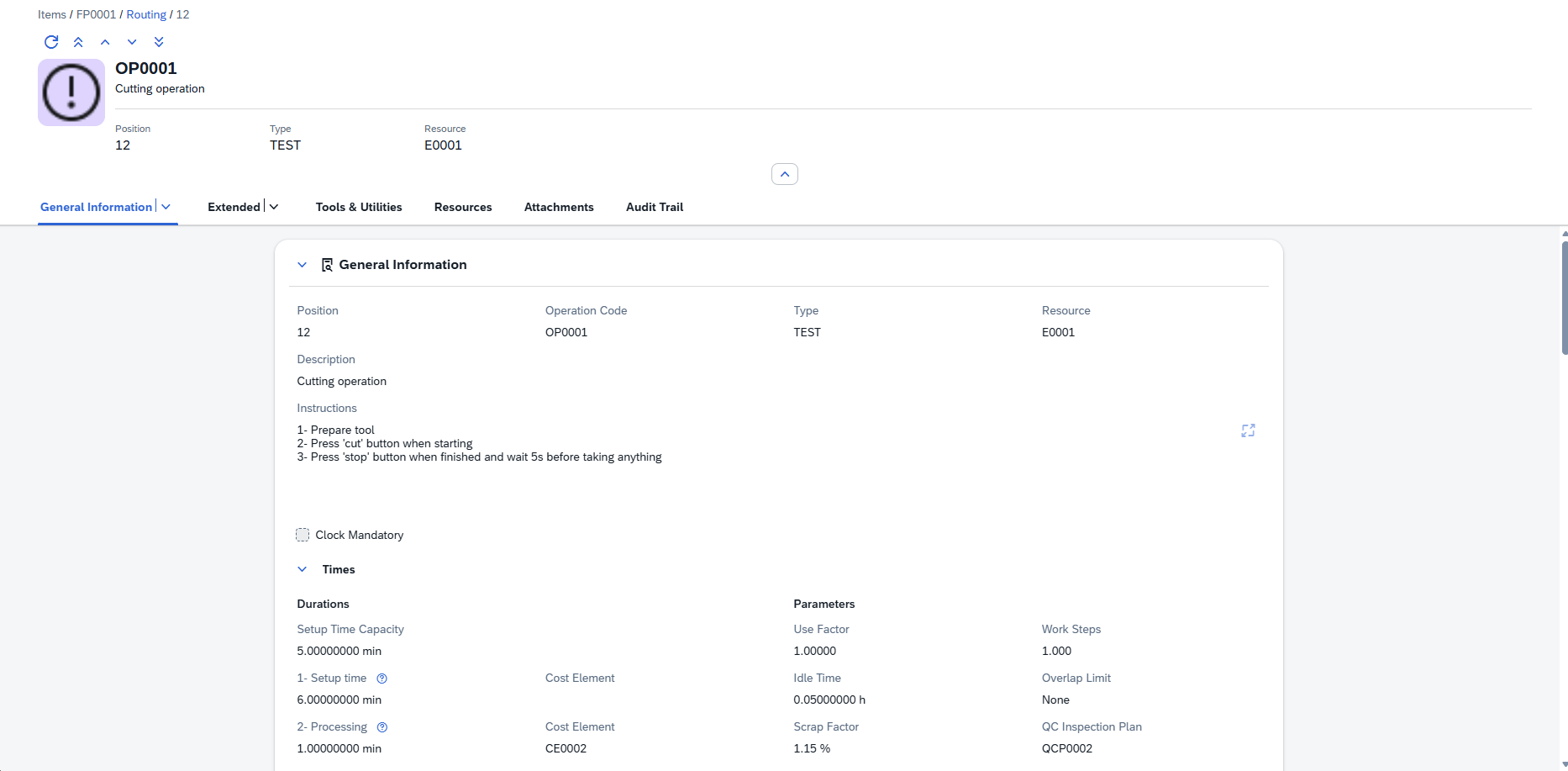
|
The following controls are available (where applicable) with the Beas Web Client.
Navigation bar
When viewing a material or operation detail page, you can navigate between positions without returning to the list view. A navigation toolbar with four arrow buttons is available at the top of the page:
Button
|
Icon
|
Action
|
First
|

|
Jump to the first position in the list.
|
Previous
|

|
Move to the previous position.
|
Next
|

|
Move to the next position.
|
Last
|

|
Jump to the last position in the list.
|
A Refresh  button is also available to reload the current position's data from the server without navigating away. button is also available to reload the current position's data from the server without navigating away.
The navigation order follows the position ordering from the list view (respecting any active sort). Navigating between positions updates the URL, breadcrumb, header, and all form sections in place. Navigation wraps around: pressing Next on the last position moves to the first, and vice versa.
Quick Review Workflow: Use the navigation arrows to quickly review all materials or operations in sequence. This is particularly useful during BoM audits or routing reviews, where you need to inspect each position without repeatedly returning to the list.
Sorting, freezing usability
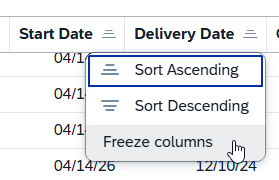
You can sort the tables by ascending or descending values.
"Freeze column" function: Click on a column title to access the function. You can block a column from getting scrolled while browsing left-right in the results. When this is active, the column stays visible, while others get scrolled. You can also freeze multiple columns counting from the first one. To deactivate the function, click the same column and select "Unfreeze".
Filter window

Field
|
Description
|
Select All
|
Select all entries in the list
|
Show selected
|
Display selected column entries and hide unselected ones
|
Show all
|
Display all column entries in the list
|
Reset
|
Reset "Select All" to only selected entries
|
Search field: Search by the indicated prompts or click the browse button  where applicable for multiple selection. where applicable for multiple selection.
Grid Tool bar
The grid toolbar above the results table provides several actions for working with the data:
Button
|
Icon
|
Description
|
Export
|

|
Export the current grid data to Excel or CSV for offline analysis or sharing.
|
Full screen
|

|
Expand the grid to fill the entire screen for better visibility when working with many columns.
|
Sort
|

|
Open the sort configuration to define multi-column sort orders.
|
Filter
|

|
Toggle column-level filter row for fine-grained filtering within the grid.
|
Group
|

|
Configure grouping by one or more columns (e.g., group by Item Code or Warehouse to see aggregated views).
|
Settings (gear icon)
|

|
Open the column chooser to show/hide columns, reorder them, and resize column widths.
|
You can also click any column header directly to sort by that column, or drag a column header to the grouping area to group by that column.
Action Buttons
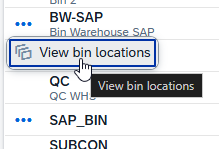
Action buttons appear only when applicable for a column. You can access them by clicking on the three dots left of the relevant field:
|
The Operation Detail View follows the SAP Fiori Object Page pattern: a header area with key facets at the top, followed by form sections organized into clearly labeled tabs.
The view has the following layout:
•Header Area — Shows an avatar (icon or image), the position's title and subtitle, and quick-reference facets (key facts displayed as labeled values).
•Form Sections — All fields are grouped into collapsible sections such as General Information, Quantities, Extended, Custom Fields, and Audit Trail.
•Navigation Arrows — Move between positions (First, Previous, Next, Last) without returning to the list view.
Read-Only Views: These detail views display data in read-only mode. They are designed to give you quick, organized access to all details of a material or operation without accidentally modifying data.
Header
The header provides a quick summary of the operation:
•Avatar — A factory icon representing the operation.
•Title — The Operation Code (e.g., OP0001).
•Subtitle — The operation description (e.g., "Cutting operation")
•
Key facets displayed in the header:
Facet
|
Description
|
Position
|
The position number in the routing (e.g., 12).
|
Type
|
The operation type (e.g., TEST, STANDARD).
|
Resource
|
The primary resource assigned (e.g., E0001).
|
Hide this part of the view by collapsing it in the middle just above the tabs.
The General Information tab is the default view and contains the core operation definition.
General Fields
Field
|
Description
|
Position
|
The operation's position number in the routing sequence (read-only).
|
Operation Code
|
The code identifying the operation (e.g., OP0001).
|
Type
|
The operation type (e.g., TEST, STANDARD). This value controls which sections are visible — see the conditional visibility notes below.
|
Description
|
A description of the operation (full width, multi-line).
|
Resource
|
The primary resource (machine or work center) assigned to this operation.
|
Clock Mandatory
|
Whether time recording (BDE) is mandatory for this operation.
|
External Operation (Subcontracting)
This group is only visible when the operation type has the "External" flag enabled, indicating the operation is performed by an outside vendor.
Field
|
Description
|
Vendor Code
|
The supplier performing the external operation.
|
Subcontract Item Code
|
The item code used for the subcontracting purchase order.
|
Subcontract Price
|
Price per unit for the external service.
|
Price Per
|
The price factor (quantity basis for the unit price).
|
Min. Price
|
Minimum charge for the subcontract.
|
Transport Price
|
Transportation/shipping costs.
|
Transport Price Type
|
Shipment lot size for transport pricing.
|
Currency
|
Currency code for subcontract pricing (e.g., EUR, USD).
|
PO Warehouse
|
Warehouse for the purchase order receipt.
|
Conditional Visibility — Operation Type Flags Several sections in the operation detail view are shown or hidden based on flags defined on the operation type. When you see a section that is not displayed, it means the current operation's type does not have the corresponding flag enabled:
•External (ExternalId = 1) — Shows the External Operation / Subcontracting fields.
•Without Time — Hides the Durations section and the Tools & Utilities / Resources tabs.
•Create Costs — Shows the Costs section.
•Milestone — Shows the Milestone field in the Costs section.
Time field labels may be customized per system configuration via the Time Operators table. The default labels are shown below:
Durations
Conditional Visibility: The Durations section is only visible when the operation type does not have the "Without Time" flag enabled. Operations configured as time-less (e.g., milestone-only) will hide this entire section.
Field
|
Description
|
Setup Time
|
Main setup/preparation time before production begins.
|
Setup Time 2
|
Secondary setup time (capacity-related).
|
Processing Time
|
Machine and labor processing/cycle time per unit or batch.
|
Post-Process Time
|
Rework or finishing time required after main processing.
|
Auxiliary Time
|
Additional time for quality control or helper tasks.
|
Parameters
Field
|
Description
|
Use Factor
|
If several parts are produced with only one work step, the use factor is higher than 1.
|
Work Steps
|
The number of steps needed to finish one part.
|
Idle Time
|
Time (in hours) in which the semi-finished part must not be further processed, e.g. drying time, cooling etc.
|
Overlap Limit
|
Controls overlap with subsequent operations: None or Parallel.
|
Scrap Factor
|
The percentage of scrap. See Beas Online Help > Extended routing settings.
|
QC Inspection Plan
|
Link to a quality control inspection plan.
|
Number of Payslips
|
Information field – if applicable, for information on number or pay slip printouts.
|
|
Field
|
Description
|
Quantity per Time
|
The assembly quantity that the time refers to.
|
Factor per Production UoM
|
The conversion factor between time receipt unit and the production unit of the Assembly.
|
Resource Allocation
|
Resource allocation
|
Allocation Quantity
|
The allocation amount for multi-machine setups.
|
Operation Active
|
When check mark is enabled, operation is active.
|
|
|
Area of Validity
Field
|
Description
|
Valid from - To
|
Start date from which this operation is valid -- End date after which this operation is no longer valid.
|
I-Version From-To
|
Starting item version for which this operation applies. -- Ending item version.
|
I-Version Range
|
A version range expression.
|
Other
Field
|
Description
|
Scrap of Material %
|
Scrap percentage
|
Confirm Factor
|
Confirm Factor
|
Confirm in Units
|
Determines in which UoM quantities are reported for this operation sequence via the terminal.
|
Master Position
|
Master position (as opposed to slave)
|
Image
|
Icon/image for visual identification in lists and headers.
|
Color
|
Color for visual distinction.
|
Synchronization
|
At import or inserting a routing position, the routing is always deleted completely and re-imported.
|
Invisible in precalculation
|
When check mark is active, operation is hidden in pre-calculation reports.
|
Login Block
|
When check mark is active, login/booking against this operation is not possible.
|
Invisible in post calculation
|
When check mark is active, operation is hidden in post-calculation reports.
|
Value only in precalculation
|
When check mark active, the cost value (not times) is only shown in pre-calculation.
|
Block closing with less quantity
|
When check mark is active, closing the operation is not possible if confirmed quantity is less than planned.
|
Resource optimization
|
When check mark is active, if the stored resource is part of a resource group, at scheduling, the resource is automatically selected from the group with the shorted lead time.
|
|
The Tools & Utilities tab in the Operation Detail View displays the tools and utility items associated with the operation. Two sub-views are available, selectable via a segmented button (toggle) at the top of the tab:
Conditional Visibility: This tab is only visible when the operation type does not have the "Without Time" flag enabled.
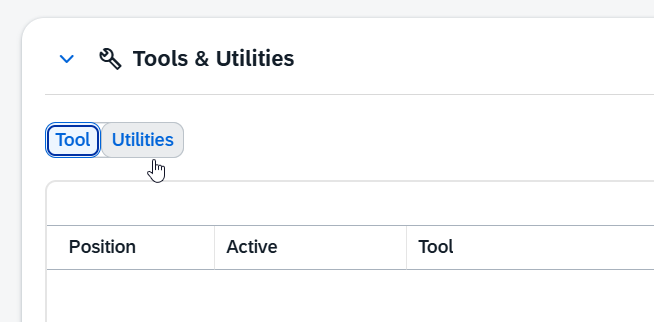
Tool View
Shows all tools assigned to this operation in a read-only grid:
Column
|
Description
|
Position
|
Sort position of the tool.
|
Active
|
Whether the tool assignment is active.
|
Tool
|
The tool code identifier.
|
Description
|
Description of the tool.
|
Setup Time
|
Setup time required for this tool.
|
Processing Time
|
Machine and labor time for this tool.
|
Info
|
Additional information about the tool assignment.
|
Utilities View
Shows all utility items assigned to this operation. Utilities have a simpler structure than tools (no time fields):
Column
|
Description
|
Position
|
Sort position of the utility item.
|
Tool
|
The utility item code.
|
Description
|
Description of the utility.
|
Info
|
Additional information.
|
|
The Resources tab in the Operation Detail View shows alternative and parallel resource assignments. Two sub-views are available via a segmented button (toggle):
Conditional Visibility: This tab is only visible when the operation type does not have the "Without Time" flag enabled.

Parallel Resources
Lists resources that run simultaneously during this operation:
Column
|
Description
|
Active
|
Whether this parallel resource assignment is active.
|
Position
|
Sort position.
|
Resource
|
The resource code (e.g., M0002).
|
Description
|
Description of the resource (e.g., "Machine 2 - Multimachine").
|
Setup Time
|
Setup time for this parallel resource.
|
Processing Time
|
Processing time for this parallel resource.
|
Alternative
|
Whether this resource can also serve as an alternative.
|
Alternative Resources
Lists resources that can be used as replacements for the primary resource:
Column
|
Description
|
Position
|
Sort position.
|
Info
|
Additional information.
|
Resource
|
The alternative resource code.
|
Description
|
Description of the resource.
|
Setup Time
|
Setup time for this resource.
|
Processing Time
|
Processing time for this resource.
|
Optimized ID
|
Identifier used for resource optimization scheduling.
|
Allow Manual Change
|
Whether manual resource changes are allowed during production.
|
|
Up to three images can be attached to an operation for visual reference (photographs of the work step, reference drawings, or other documentation):

|
Four read-only fields tracking record creation and modification:
Field
|
Description
|
Created
|
Date and time when this operation was created.
|
Created By
|
User name of the creator.
|
Modified
|
Date and time of the last modification.
|
Modified By
|
User name of the person who last modified the record.
|
|
Breadcrumb Trail
The breadcrumb trail at the top of the page shows your current location within the navigation hierarchy. It provides clickable links to navigate back to any parent level:
Items › {ItemCode} › Bill of Materials › {Position}
Example: Items › FP0001 › Bill of Materials › 20
Items › {ItemCode} › Operations › {Position}
Example: Items › FP0001 › Operations › 12
Clicking Items returns to the Items list. Clicking the item code returns to that item's detail view. Clicking Bill of Materials or Operations returns to the respective list/grid view. The last breadcrumb segment (the position number) represents the current page and is not clickable.
Help URL: https://help.beascloud.com/beas202604/index.html?operations---detail-view.html
|
