Beas Manufacturing › Documents › Work Orders
The Work Orders page is where you manage all production orders. A work order represents a manufacturing job: it records which item is to be produced, for which customer, how many are planned and what time frame applies. From a work order you can drill into its positions (Bill of materials lines and operations), track progress and close the order once production is complete.
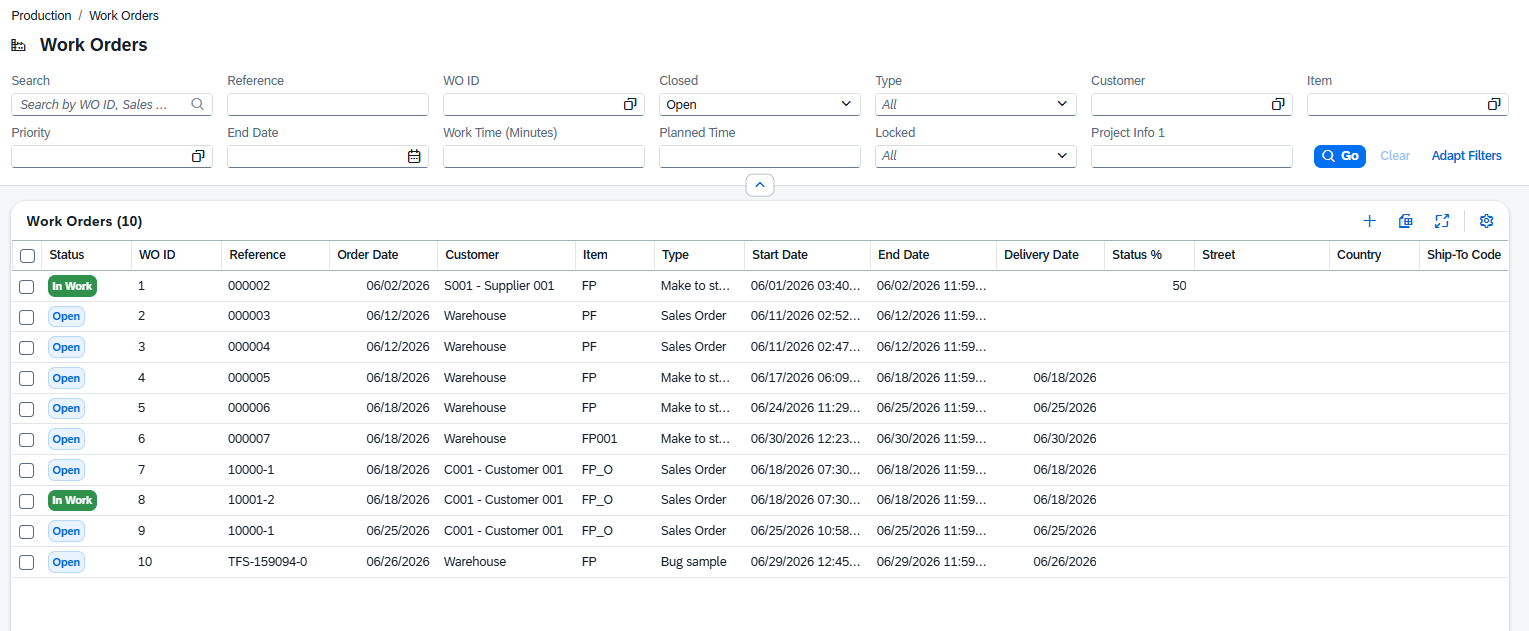
The Work Orders list — filter bar on top, then the grid of open work orders.
Opening the list
1.In the main navigation, go to Documents › Work Orders.
2.The list opens showing all open work orders by default (filter Closed = Open is pre-set).
3.Direct URL: /views/work-orders
Click any row to open the Work order detail page, or click (+) in the toolbar to add a new one.
Filters and search
The filter bar above the grid lets you narrow down the list. Type in the search box to search across Sales Order, Item and Customer Name at once. Use the individual filter fields for more precise control.
Filter |
Description |
|---|---|
Reference |
Filter by linked documents. Use the selection dialog (🔍) to pick from the list. Manual reference, automatic reference when sales order related. |
WO ID |
Filter by one or more work order IDs (DocEntry). Use the selection dialog to pick from the list. |
Closed |
Show open or closed work orders. Defaults to Open. Set to blank to show all. |
Type |
Filter by production type. The available values come from the Production Types master data. |
Customer |
Filter by customer ID. Type the customer code directly. |
Item |
Filter by one or more item codes. Use the selection dialog to pick from the item list. |
Priority |
Filter by one or more priorities. Use the selection dialog to pick from the Priorities master data. |
Press Go to run the search with the current filter values. Press Clear to reset all filters .
Press Adapt filters to select any value(s) based on the columns in the list below.
List columns
The grid shows the most useful fields by default. Use the column settings button to show or hide additional columns.
Column |
Description |
|---|---|
Status |
The calculated status of the position, shown as a colored badge: Open (no quantity made yet), In Work (some quantity made but not closed), or Closed. |
WO ID |
The unique numeric identifier of the work order (DocEntry). |
Reference |
The sales order the work order was created from, if any. |
Order Date |
The date the work order was entered. |
Customer |
The customer code and name, shown as Code – Name. |
Item |
The item (finished good) to be produced. Clicking the link navigates to the item master data. |
Type |
The production type (e.g. Standard, Rework, Repair). |
Start Date |
The planned production start date and time. |
End Date |
The planned production end date and time. |
Delivery Date |
The date the finished goods are due to be delivered. |
Additional columns
The following columns are available but hidden by default:
Column |
Description |
|---|---|
Work Time |
Actual work time posted against the order. |
Target Time |
Planned (target) work time for the order. |
Receipt Count |
Number of goods receipts posted. |
Priority |
The production priority assigned to the order. |
Branch |
Name of the business place the order belongs to. |
Branch ID |
ID of the business place. |
Project |
The project code linked to the order. |
Status Description |
Free-text description of the current status. |
Status % |
Completion percentage of the order. |
Locked |
Whether the order is locked against changes. |
Planning Order |
Whether the order is a planning order only (not a confirmed production order). |
Overhead |
Overhead costs posted to the order. |
Color |
A color code assigned to the order for visual grouping. |
Closed |
Whether the order is closed (check box). |
Created |
Date and time the record was created. |
Created By |
User who created the record. |
Modified |
Date and time the record was last changed. |
Modified By |
User who last changed the record. |
Project manager |
The project manager's name |
Ship-To-Code |
Code of the customer's shipping destination |
Phone |
Customer phone number |
Zip |
Customer postal code |
To be printed |
|
Additional text |
Free text to add |
Actual time |
Actual time of the work order |

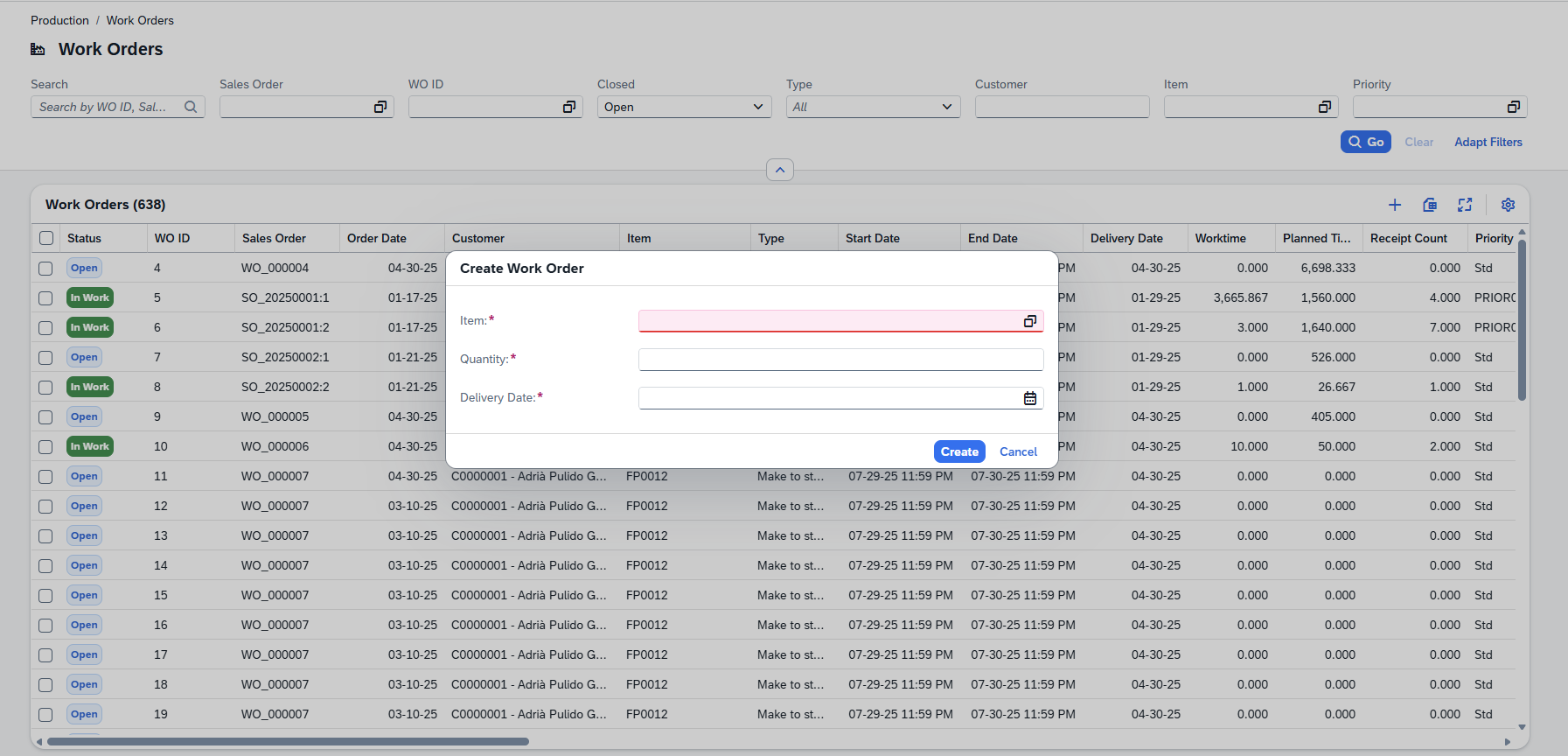
Beas Manufacturing › Documents › Work Orders > "+" Create
1.In the Work Orders list, click (+) in the top tool bar. 2.A dialog opens. Enter the required fields: Item code, Quantity to produce and Delivery Date. 3.Confirm the dialog. The new work order opens immediately in the detail page where you can fill in all remaining fields. Note: Work orders can also be generated automatically from sales orders or from the MRP planning run. In those cases they appear in the list already populated with the relevant sales order reference, item and dates.
|
Tips
Tip: The list opens with Closed = Open pre-set so you only see active work orders. To review completed orders, change the Closed filter to Closed or clear it entirely to see all orders.
Tip: Use the navigation arrows in the detail page header to step through work orders one by one without returning to the list. This is useful when you need to review or update a series of orders in sequence.
Note: The Production section fields (Work Time, Target Time, Receipt Count, Overhead, Closed, Locked) are all read-only. They are updated automatically when production postings and goods receipts are entered — you cannot edit them directly on the work order.
Tip: To see all columns available in the list — including Priority, Project, color and the audit trail fields — open the column settings panel with the settings button in the toolbar and switch on the columns you need.