Beas Manufacturing › System › Settings › UDF Configuration
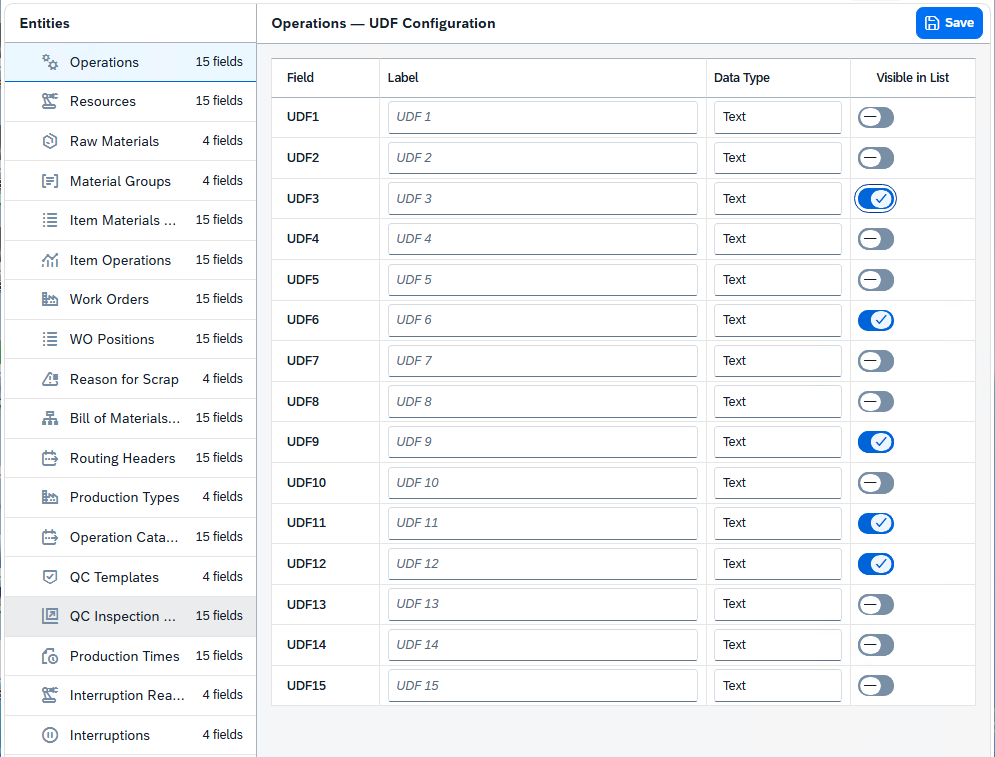
UDF Configuration is where you set up the user-defined fields (UDFs) of the Beas entities — the extra fields you can use to store your own information on operations, resources, work orders and many other records. For each entity you decide which of its UDFs are used, give each one a readable label, choose the kind of data it holds, and say whether it should show up as a column in that entity's list. The view is split in two: a list of entities on the left, and the configuration table for the entity you pick on the right.
Opening the view
UDF Configuration is an administration view, reached from the System / Settings area:
1.Open the SAP Web Client.
2.Go to the Settings area and open UDF Configuration.
Direct URL: views/udf-config
Note: The view is only available to users whose permissions allow UDF configuration. If you do not have the right, the option is not shown.
Entities (left panel)
The left panel, titled Entities, lists every Beas entity that supports user-defined fields. Each row shows the entity's name, an icon, and below the name the number of fields it has — for example 15 fields. Select a row to load that entity's fields into the table on the right; only one entity is selected at a time.
Before you pick an entity, the right panel shows Select an Entity with the hint "Choose an entity from the left panel to configure its user-defined fields."
The entities available are:
Entity |
Fields |
|---|---|
Operations |
15 |
Resources |
15 |
Raw Materials |
4 |
Material Groups |
4 |
Item Materials (BOM) |
15 |
Item Operations |
15 |
Work Orders |
15 |
WO Positions |
15 |
Reason for Scrap |
4 |
Bill of Materials Header |
15 |
Routing Headers |
15 |
Production Types |
4 |
Operation Catalogs |
15 |
QC Templates |
4 |
QC Inspection Plans |
15 |
Production Times |
15 |
Interruption Reasons |
4 |
Interruptions |
4 |
Configuring the fields (right panel)
When an entity is selected, the right panel header reads <Entity> — UDF Configuration (for example Operations — UDF Configuration) and a Save button appears in its toolbar. Below it is one row per user-defined field of the entity. The columns are:
Column |
Description |
|---|---|
Field |
The internal name of the field (UDF1, UDF2, and so on). This is fixed and cannot be changed. |
Label |
The readable name for the field. Type the text users should see for this field; until you do, the field shows a placeholder such as UDF 1. Leave it empty to keep the field unnamed. |
Data Type |
The kind of value the field holds. Pick one from the list (see Data types below). |
Visible in List |
A switch that decides whether the field appears as a column in the entity's list. Turn it on to show the field, off to keep it hidden. |
Tip: Give a field a Label before turning on Visible in List, so it shows a meaningful column heading instead of its internal UDFn name.
Data types
The Data Type column offers these choices:
Data type |
Description |
|---|---|
Text |
Free text. |
Number (Integer) |
A whole number. |
Decimal |
A number with decimals. |
Date |
A date. |
Date & Time |
A date together with a time. |
Check box (Yes/No) |
A yes / no (true / false) value. |
Saving
Changes are not written until you save. The Save button is enabled only once you change something (a label, data type or visibility), and stays disabled while a save is in progress. When the save finishes, the message "UDF configuration saved successfully." is shown and the entity's fields are reloaded with the stored values.
Note: Saving applies to the entity currently selected. Switch to another entity in the left panel to configure its fields separately.