This is the field right of Quantity without title.
Here you can choose the Unit of Measurement, in which you want to define the needed Quantity (See field Quantity)
Standard is Production UoM See: Units of measure
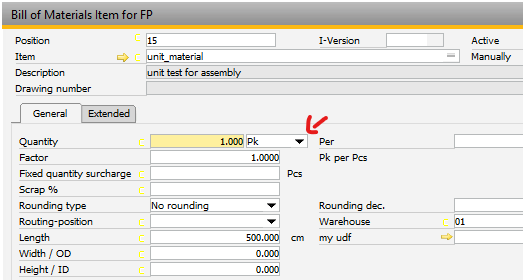

It is possible to change this field every time and to every UoM which is defined in the Unit of measurement.
UoM Group is defined in defined item If a Unit of Measurement Group is defined in the Master Data of this Material, you can choose only an UoM defined in the UoM Group. It is not possible to change the Factor in this window.
UoM Group is not defined in the item If the item does not have a UoM Group, you can choose every UoM. You can define a factor between this input unit and production unit only if the defined UoM is not the Production UoM of this item. Note: Beas ignores length/width/height change as these are part of the Conversion factor - formula. If you create a work order and the UoM Group is not defined, the system ignores the UoM and UoM Factor definition, and always works with production UoM.
Related to the conversion factor, the system calculates the Quantity in Production UoM and then the Inventory UoM. |
It is possible to change this field every time and to every UoM, which is defined in the Unit of measurement. if a Unit of Measurement Group is defined in the Master Data from this Material, you can choose only an UoM defined in the UoM Group. Note: It is important that a UoM Conversion factor is defined in UoM Conversion. Related to the conversion formula and current values of this BoM Position, the system calculates the Quantity in Production UoM and then the Inventory UoM. |
In Work order > Bill of Materials the input unit is only changeable: - if no transaction exists - a Unit of Measurement Group is defined in the Master Data from this Material
You can choose only UoM if - Defined in the Unit of Measurement Group - UoM Conversion exists for this UoM and Inventory UoM
If you change the Input unit, the Quantity will be calculated based on quantity in production UoM and on the Conversion formula defined in the UoM Conversion. If you change the Quantity in input UoM, the system calculates the quantity in production UoM and in inventory UoM based on UoM Conversion.
If you change the quantity with BeasScript or import hub, the system overwrites the Input Unit with Production UoM. If you refresh the work order, the system overwrites the Input Unit with Production UoM.
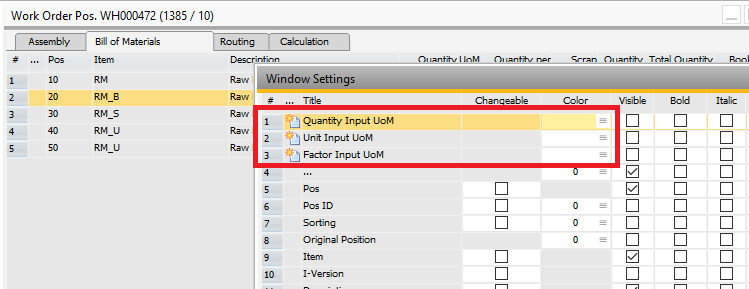
In Work order Bill of Materials you can activate the Input Unit via window settings. But this fields is not changeable.
If you change the quantity in Production UoM, the system overwrites the Input unit with Production UoM. |
UoM Conversion
If Unit of Measurement Group is defined in the Master Data of this Material, the system tries to use the conversion factor defined in the UoM Group.
If it is not stored there, the system searches the UoM Conversion table. If it does not exist, the system searches the opposite in the same table and creates the formula
"1 : [the defined formula]
If the opposite does not exist, the system returns an error and continues with Conversion factor 1.
Note on UoM Groups
In Bill of Materials you can define the Quantity in Input Unit. This will be converted in Production UoM and this in Inventory UoM.
Problem: If the Production UoM is not the same as the Inventory UoM and the Input UoM is not Production UoM, the system cannot find an entry in the UoM Group. In this case, the system searches for the conversion in the UoM Conversion table to convert the quantity from Input Unit to production Unit.
Unit factor and UoM Tool tip
In the work order position, the system displays the unit in green which means that the unit factor is inside (see image below). Moving the mouse over this field, the system displays a tool tip with information on the factor and the UoM (see image below).
The system can calculate with 20 decimals rounded up to 6 decimals for display.
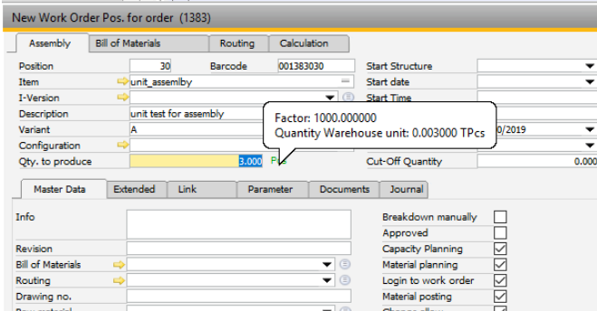
When you change the UoM, the system calculates the Quantity and the factor automatically (see image below).
The new Quantity is based on the current production unit.
NOTE: This is only possible if a Conversion factor was defined previously).
Example:
Conversion: 1 TPcs =1000 Pcs
Old Qty = 2000 Pcs
Change UoM to TPcs. The System display Quantity = 2 TPcs
If the Quantity in TPcs is changed, the system calculate the Production UoM and from this the Inventory UoM
If length/width/height, density or item code self is changed, the base quantity is always the quantity in Production UoM and the system always calculates the quantity in the Production UoM and Inventory UoM.