The following controls are available (where applicable) with the Beas Web Client.
Navigation bar
When viewing a material or operation detail page, you can navigate between positions without returning to the list view. A navigation toolbar with four arrow buttons is available at the top of the page:
Button |
Icon |
Action |
|---|---|---|
First |
|
Jump to the first position in the list. |
Previous |
|
Move to the previous position. |
Next |
|
Move to the next position. |
Last |
|
Jump to the last position in the list. |


A Refresh  button is also available to reload the current position's data from the server without navigating away.
The navigation order follows the position ordering from the list view (respecting any active sort). Navigating between positions updates the URL, breadcrumb, header, and all form sections in place. Navigation wraps around: pressing Next on the last position moves to the first, and vice versa.
Quick Review Workflow: Use the navigation arrows to quickly review all materials or operations in sequence. This is particularly useful during BoM audits or routing reviews, where you need to inspect each position without repeatedly returning to the list.
Sorting, freezing usability
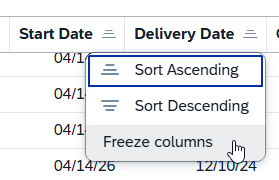
You can sort the tables by ascending or descending values.
"Freeze column" function: Click on a column title to access the function. You can block a column from getting scrolled while browsing left-right in the results. When this is active, the column stays visible, while others get scrolled. You can also freeze multiple columns counting from the first one. To deactivate the function, click the same column and select "Unfreeze".
Filter window

Field |
Description |
|---|---|
Select All |
Select all entries in the list |
Show selected |
Display selected column entries and hide unselected ones |
Show all |
Display all column entries in the list |
Reset |
Reset "Select All" to only selected entries |
Search field: Search by the indicated prompts or click the browse button  where applicable for multiple selection.
Grid Tool bar
The grid toolbar above the results table provides several actions for working with the data:
Button |
Icon |
Description |
|---|---|---|
Export |
|
Export the current grid data to Excel or CSV for offline analysis or sharing. |
Full screen |
|
Expand the grid to fill the entire screen for better visibility when working with many columns. |
Sort |
|
Open the sort configuration to define multi-column sort orders. |
Filter |
|
Toggle column-level filter row for fine-grained filtering within the grid. |
Group |
|
Configure grouping by one or more columns (e.g., group by Item Code or Warehouse to see aggregated views). |
Settings (gear icon) |
|
Open the column chooser to show/hide columns, reorder them, and resize column widths. |


You can also click any column header directly to sort by that column, or drag a column header to the grouping area to group by that column.
Action Buttons
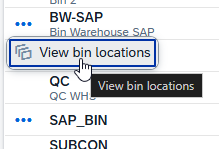
Action buttons appear only when applicable for a column. You can access them by clicking on the three dots left of the relevant field: